
Free guide · Claude from Zero · Guide 1
Set up Claude the right wayOpen an account, learn 4 words, and ask your first question
Your screen may look a little different (for example, the model name in or under the message box, like Sonnet). That's fine: the buttons are in the same places. Tap any screenshot to see it bigger.
What Claude is, in two lines
Claude is an assistant you write to in plain English, and it writes back: it drafts messages, summarizes, answers questions and helps you think. It's made by a company called Anthropic.
You don't need to know any code.
Get the app
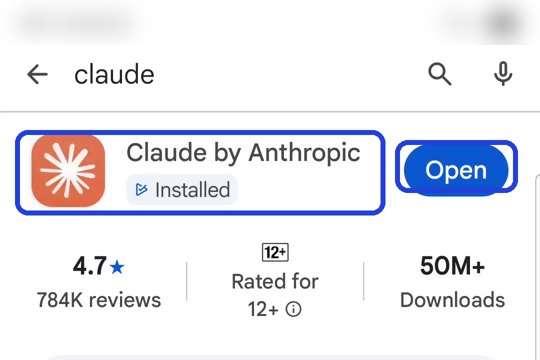
On Android: open the Play Store, search for claude, and pick Claude by Anthropic (the orange icon). Tap Install, and when it's ready, Open.
On iPhone: open the App Store and search for claude. The button there is called Get instead of Install.
On a computer: nothing to download. Just go to claude.ai (step 2 has a screenshot of the computer screen).
Type your email
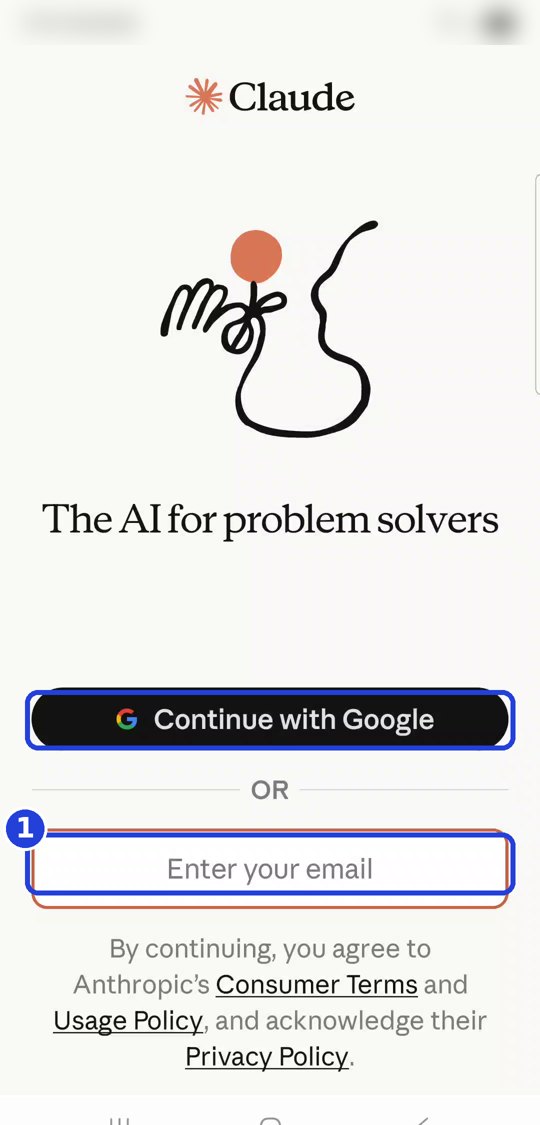
The shortcut: have a Google account (almost every Android phone does)? Tap Continue with Google and pick your account. (On iPhone you may also see Continue with Apple: it works the same way.) That skips step 3, so go straight to step 4. (The first time, Claude may ask for your name or to accept the terms. Answer and continue.)
Or with your email:
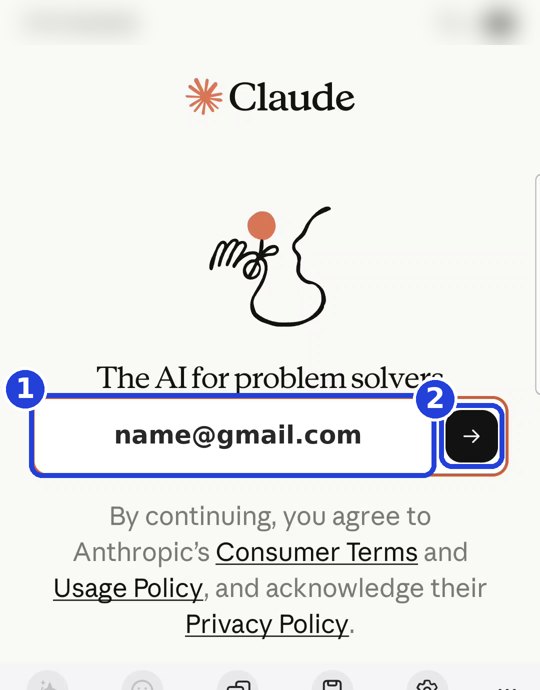
- In the Enter your email box, type your email address (1).
- Tap the black arrow on the right side of the box (2).
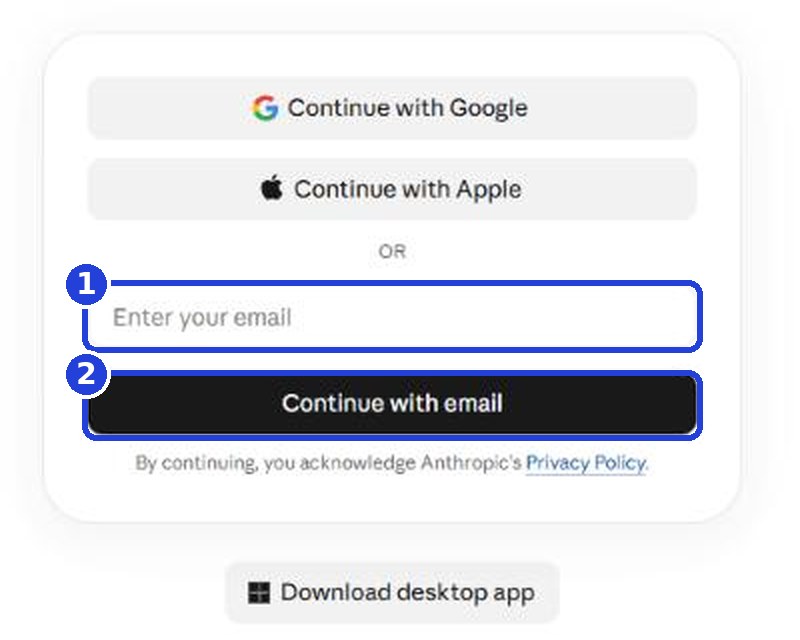
On a computer: at claude.ai, type your email in the Enter your email box (1) and click the black Continue with email button (2). You can also use Continue with Google or Continue with Apple. Then open your email in another browser tab and click Sign in in the message from Claude (like in step 3). Claude opens in your browser and you're in. You can close the sign-in tab.
Sign in from the button in your email
You'll see Check your email to finish signing in. You might also see a screen asking for a Code. Don't fill it in: go straight to your email.
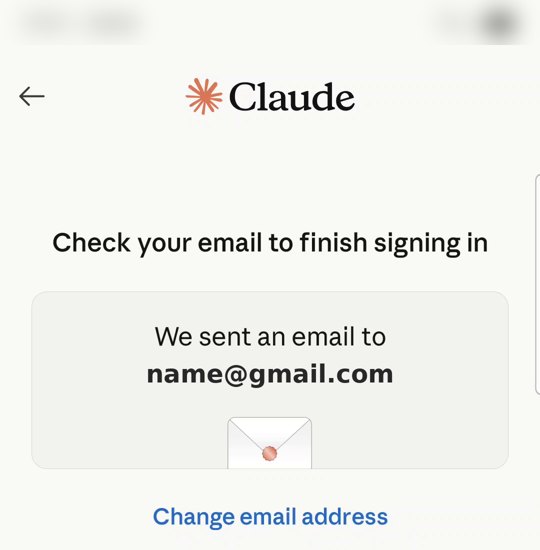
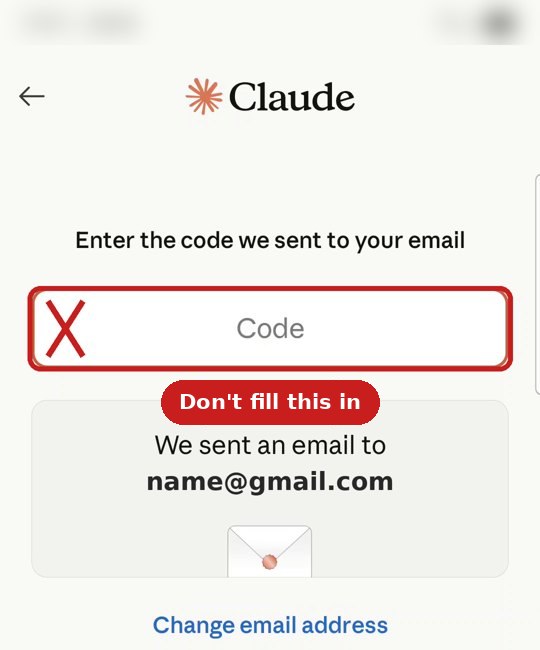
- Leave the app (swipe up from the bottom, or press Home) and open your email app: Gmail on Android, Mail on iPhone. Look for a new message from Anthropic called Your secure link to Claude. Don't see it? Check your other folders (like Promotions) and spam.
- Open the message and tap the black Sign in button.
- You'll see Verifying your secure link for a moment, and you're in. If a browser opens instead of the app, that's fine: you can keep going there. It's the same Claude.
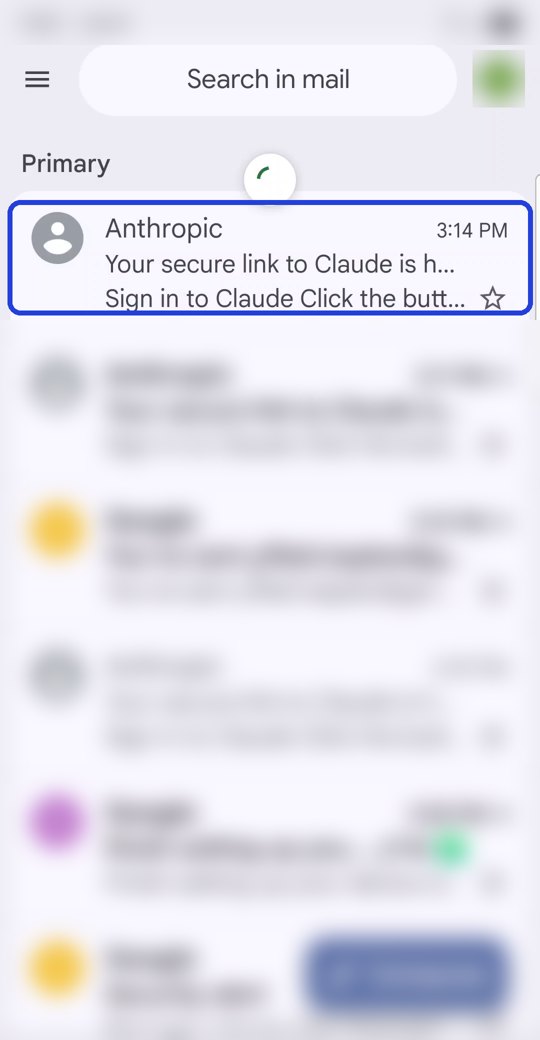
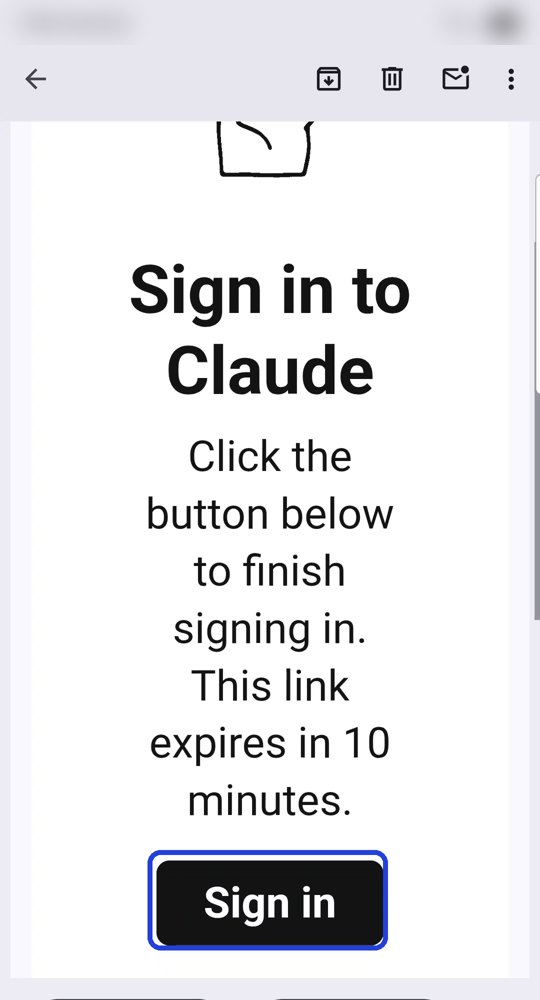
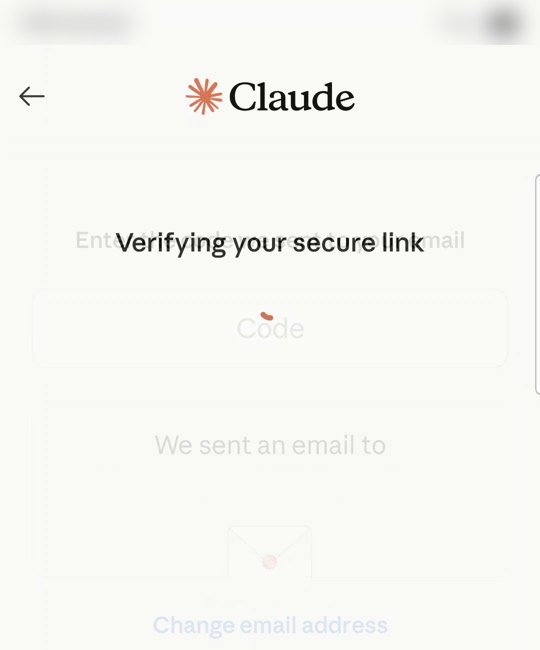
Good to know: the button in the email works for 10 minutes. Past that? Go back to the app, type your email again, and you'll get a new email.
You're in
This is the home screen. In the middle it says Free plan · Upgrade: you're on the free plan (no need to tap Upgrade). At the bottom is the message box (Chat with Claude). At the top left is the menu icon (lines) (1), which we'll use in a moment.
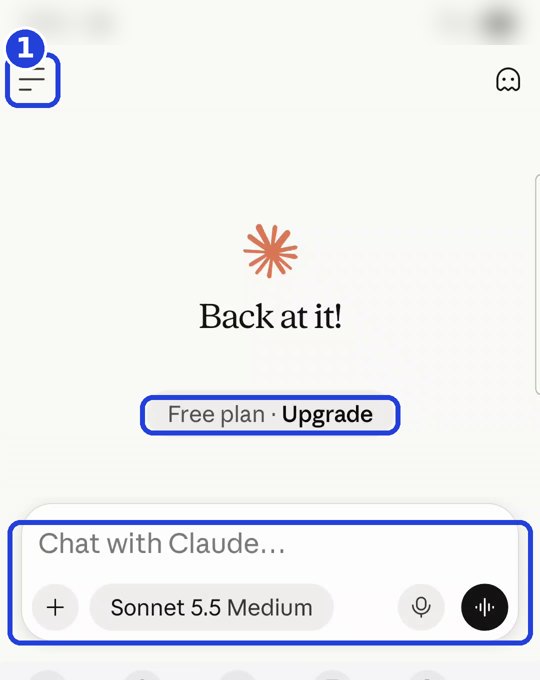
In a hurry? Jump straight to step 5 and try Claude now. You can read the two parts in between (free or paid, and the four words) later.
Free or paid?
| Free | Pro (paid) | |
|---|---|---|
| Price | $0 | $20 a month, or $200 a year (plus tax where it applies) |
| Where | Website, desktop app, phone | Website, desktop app, phone |
| Projects | Up to 5 | More |
| How much you can write | A limit that resets every 5 hours and every week | More |
Our advice: start on the free plan. Everything in the first guides works on it. Hit the limit? You'll see a message. You can wait for it to reset, or upgrade.
You don't need a credit card to start. Nothing is charged unless you tap Get Pro plan yourself and pay. Just want to peek at the prices? Tap Upgrade, then close it with the X at the top.
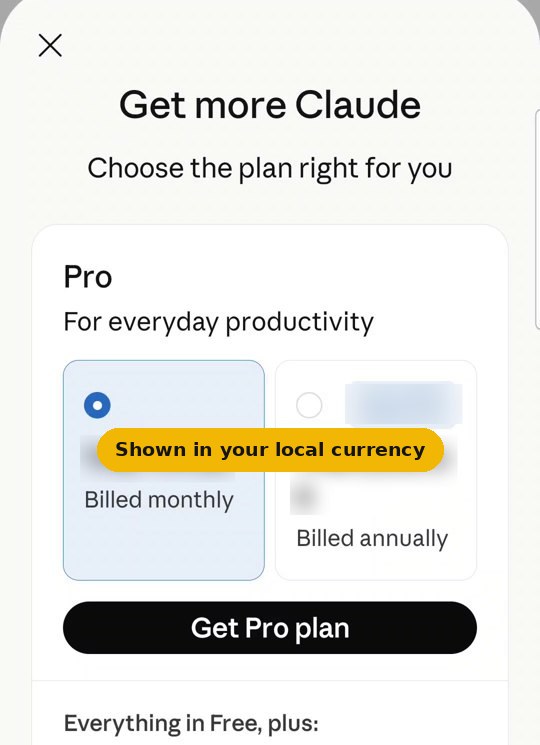
The plans screen shows prices in the currency of the country you're in, so they may differ from the dollar prices in the table (for example, because of tax). There are also bigger plans (Max, from $100 a month) for people who work with Claude all day. You don't need them to start. Dollar prices checked on claude.com on 10/31/2026.
Four words that come up in every guide
First, the menu: tap the menu icon (lines) at the top left of the home screen. A list opens with Chats, Projects (1), and at the bottom + New chat (2). That's how you start a new chat.
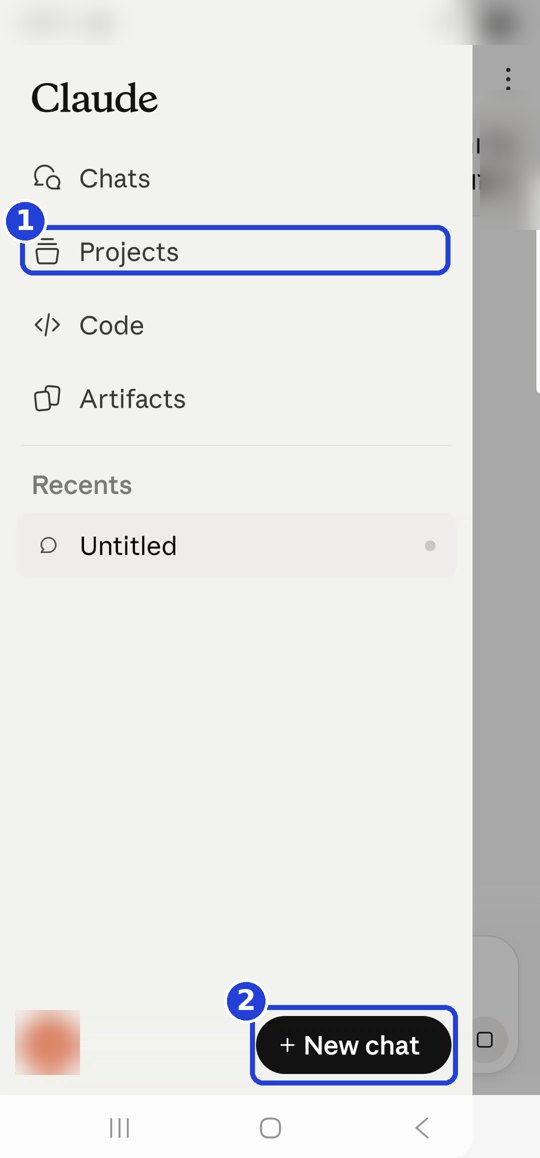
Chat: every time you write to Claude, that's a chat. All your chats are saved, and you can go back to them: menu → Chats.

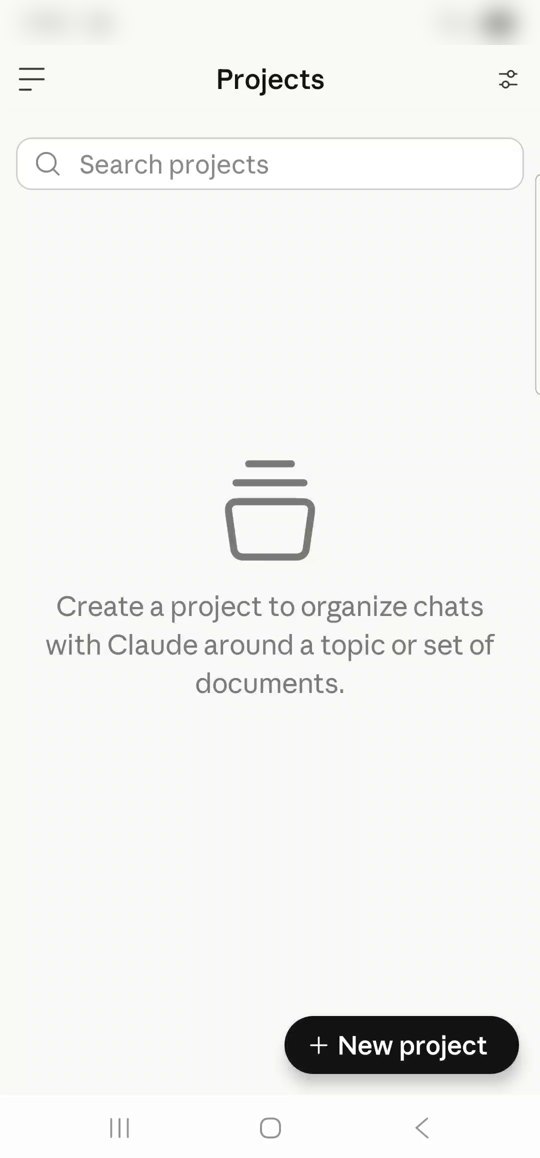
Project: a folder for one topic, like "My business". Whatever you put in it (instructions and files), Claude remembers in every chat inside it, so you don't have to explain again. Menu → Projects. The free plan allows up to 5.
File: a document, photo or text you give Claude to read. Tap the plus (+) in the message box and choose what to attach.
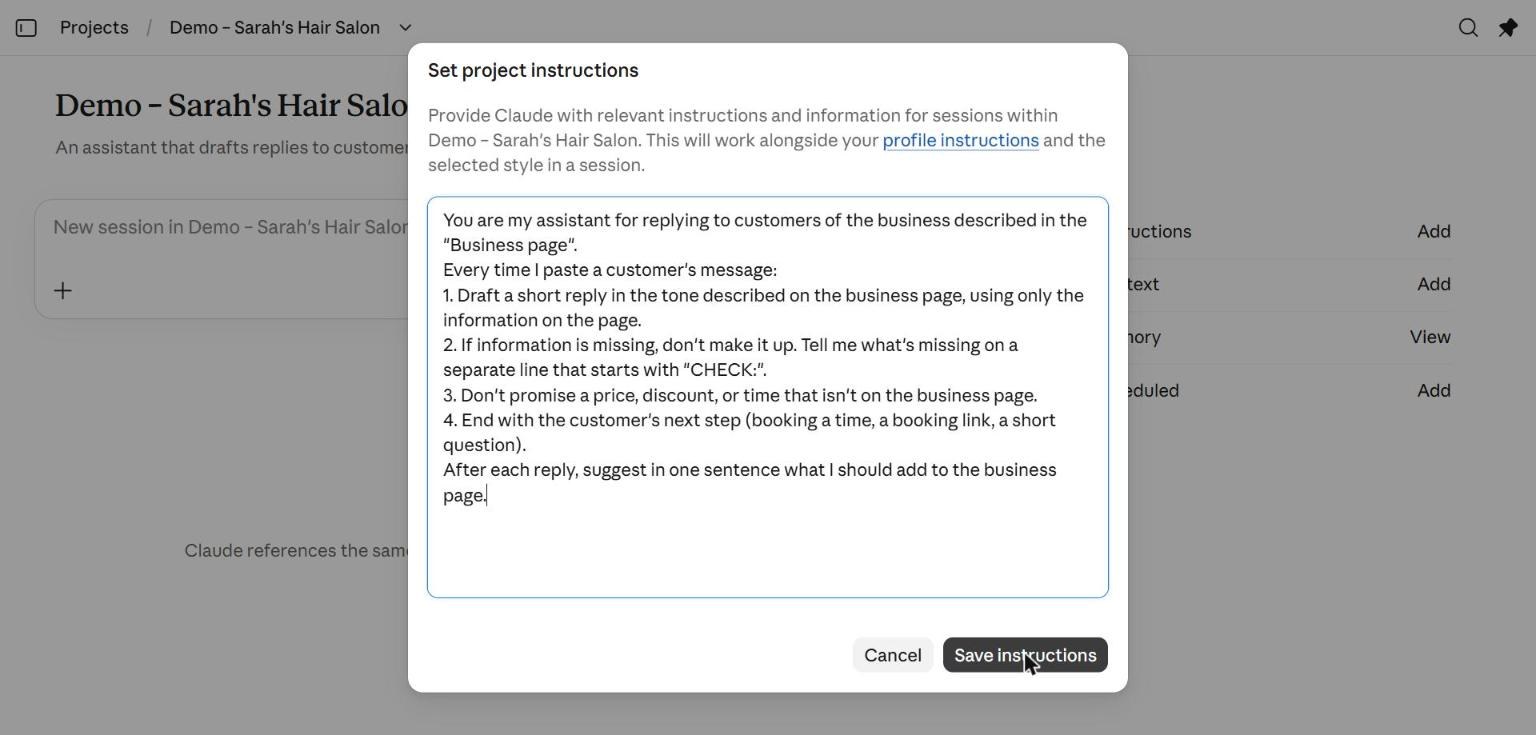
Instructions: standing text that tells Claude how to work in a project: its role, the tone to write in, and what it must never do. You write it once, and it always works that way. Here's how it looks on a computer:
Your first win: a question and an answer
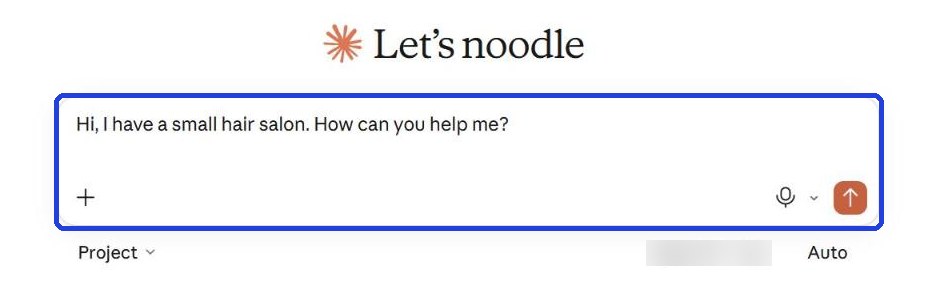
In the message box (Chat with Claude), write one sentence: what your business is, and how Claude can help. For example:
Hi, I have a small business. How can you help me?
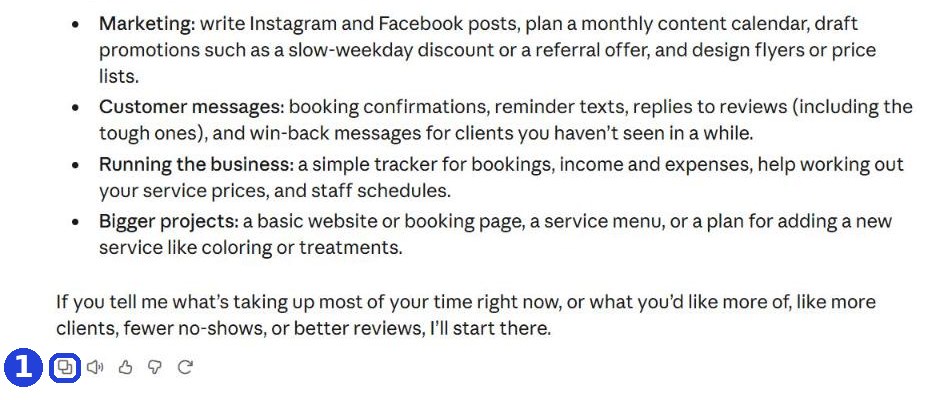
After you tap "Copy": click inside Claude's message box and paste. On a phone: press and hold in the box, then tap "Paste". On a computer: Ctrl+V (on a Mac: Command+V).
- Say what your business is instead of "a small business" (for example: "I have a flower shop"), and the answer will be more useful. In the screenshot we wrote "a small hair salon".
- You can just type it, or copy it with the Copy button here.
Once you've written it, an orange arrow appears in the bottom right corner of the box. Tap it. Then you get an answer with ideas for your business.
Want more? Write underneath, like you would to a person: "Write me a reminder text for a customer who has an appointment tomorrow at 10" or "Shorter, please".
Keep in mind: Claude can make mistakes. Read anything important before you send it. Don't paste sensitive details: Social Security numbers, credit cards, customers' medical information.
Want to choose whether your chats are used to improve Claude? It's in Claude's Settings (on a computer: click your name at the bottom left), under Privacy, in the Help improve our AI models switch.
Don't want to wait?
All the steps, prompts and templates right now, in one place, ready to copy: $1.99.
Pay once. Yours for good, including everything we add.
Training material and tools, with no promise of income.
Secure payment through Polar. The link to the pack arrives right after payment, by email too. Full refund within 14 days.
What's next
Next guide: Your first helper, an assistant that drafts replies to customers based on your prices and your style.
Want the next guide? We'll email it to you.
We'll email you the next guides, tips and updates from Team in a Box. Unsubscribe anytime.
The next guide, "Your first helper", is waiting for you at getteaminabox.com/guides/first-helper