
Free guide · Claude from Zero · Guide 2
Your first helper in ClaudeIt drafts replies to customers, based on your prices and your style
Your screen may look a little different (for example, the model name under the message box, like Sonnet or Opus). That's fine: the buttons are in the same places. Click any screenshot to see it bigger.
Fill in your "Business page" · before you open Claude
Your "Business page" is a note you write for Claude (not a website). Tap "Copy", paste it into your notes app or a document, and fill it in using your own words. Keep it: you'll paste it in step 4, and update it later.
Not now? You can start with just your business name, your prices and two common questions, and fill in the rest later.
This is the most important step. Your assistant only knows what's written here. Skip it, and the assistant will answer "CHECK:" to almost every question, because it has no information.
Business page
Business name:
What we sell / offer:
Prices (only what I can tell a customer):
Hours and location:
How to book / order:
The 5 questions I get most, and how I answer them:
Question 1:
Question 2:
Question 3:
Question 4:
Question 5:
What not to say or promise (discounts, times, prices that aren't listed here):
My tone (for example: warm and short, first names):
After you tap "Copy": paste it into your notes app or a document (on a phone: press and hold, then "Paste"; on a computer: Ctrl+V, on a Mac: Command+V).
See a filled-in example (a made-up business, for inspiration only, don't copy it)
Business name: Sarah's Hair Salon
What we offer: women's and men's haircuts, color and highlights, blowouts.
Prices: women's haircut $65, men's haircut $35, root color from $90, blowout from $45.
Hours and location: Monday to Friday 9am to 7pm, Saturday 8am to 1pm. 12 Palm Street, Sampletown.
How to book: text us the day and time that works for you, and I'll confirm.
The 5 questions I get most, and how I answer them:
1. How much is a haircut? See the price list above.
2. Any openings today? I ask what time works, then check and get back to them.
3. Can I bring my kid? Yes, kids' haircuts (under 12) are $25.
4. How long does color take? About two hours.
5. Is there parking? Yes, free parking behind the building.
What not to say or promise: discounts, an exact appointment before I confirm it, any price that isn't listed here.
My tone: warm and short, first names, no emojis.
Create a new project
Only have a phone? Skip to the phone route: it's complete on its own.
Open Claude on a computer at claude.ai and sign in with your email. (First time? Guide 1 shows how.)
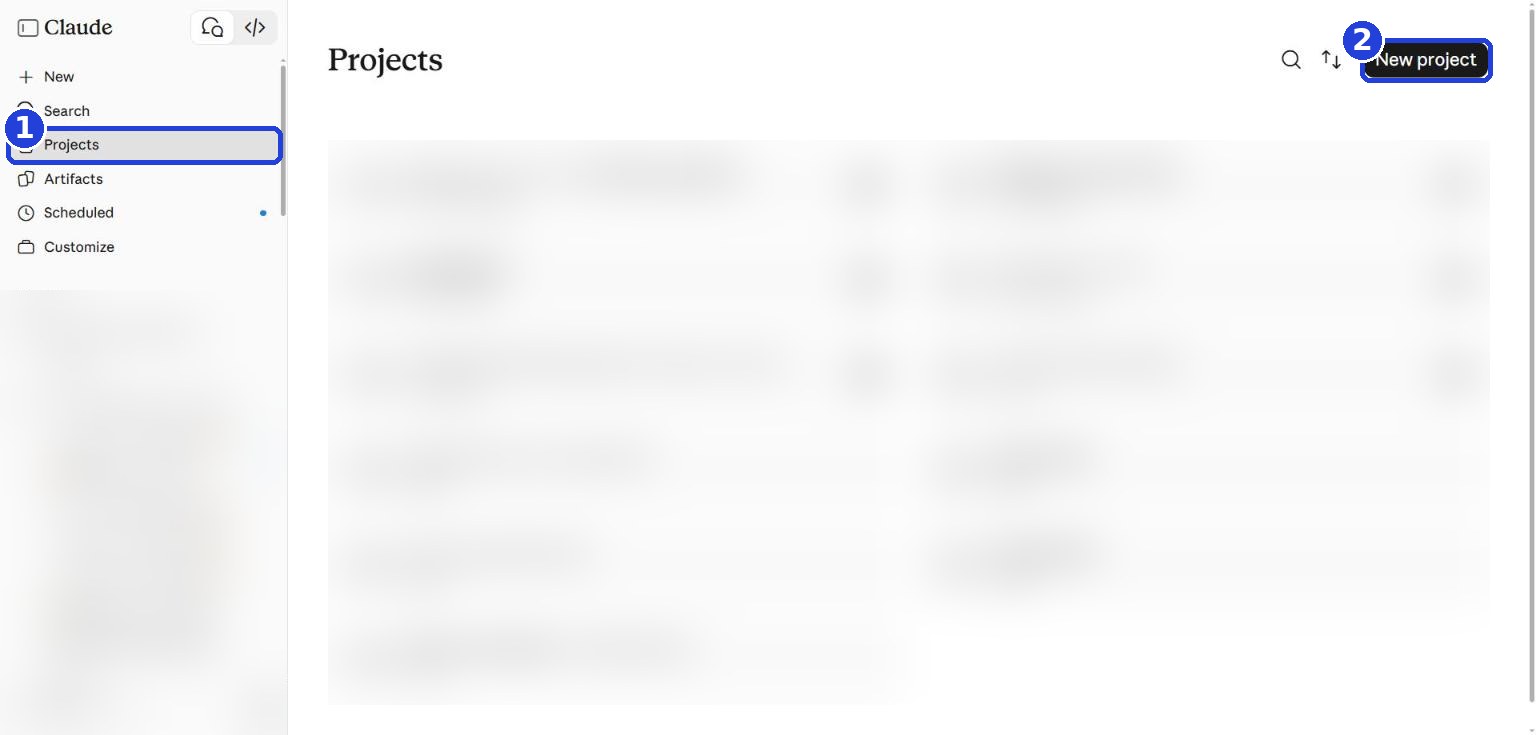
- In the menu on the left, click Projects. No menu? Click the small icon next to the word Claude, at the top left.
- At the top right, click the black New project button.
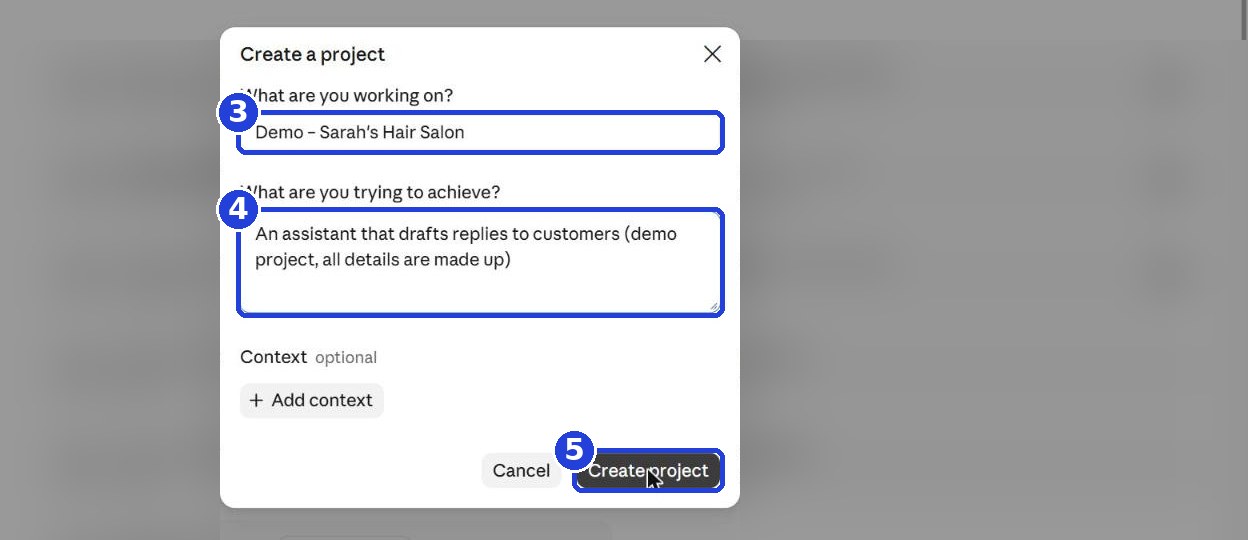
- In the first box, type just your business name. (In the screenshot we wrote "Demo – Sarah's Hair Salon", because it's a demo project.)
- The second box asks what you're trying to achieve. It's optional; you can write: "An assistant that drafts replies to customers".
- Leave Add context in this window alone. Click Create project.
Give your assistant its instructions
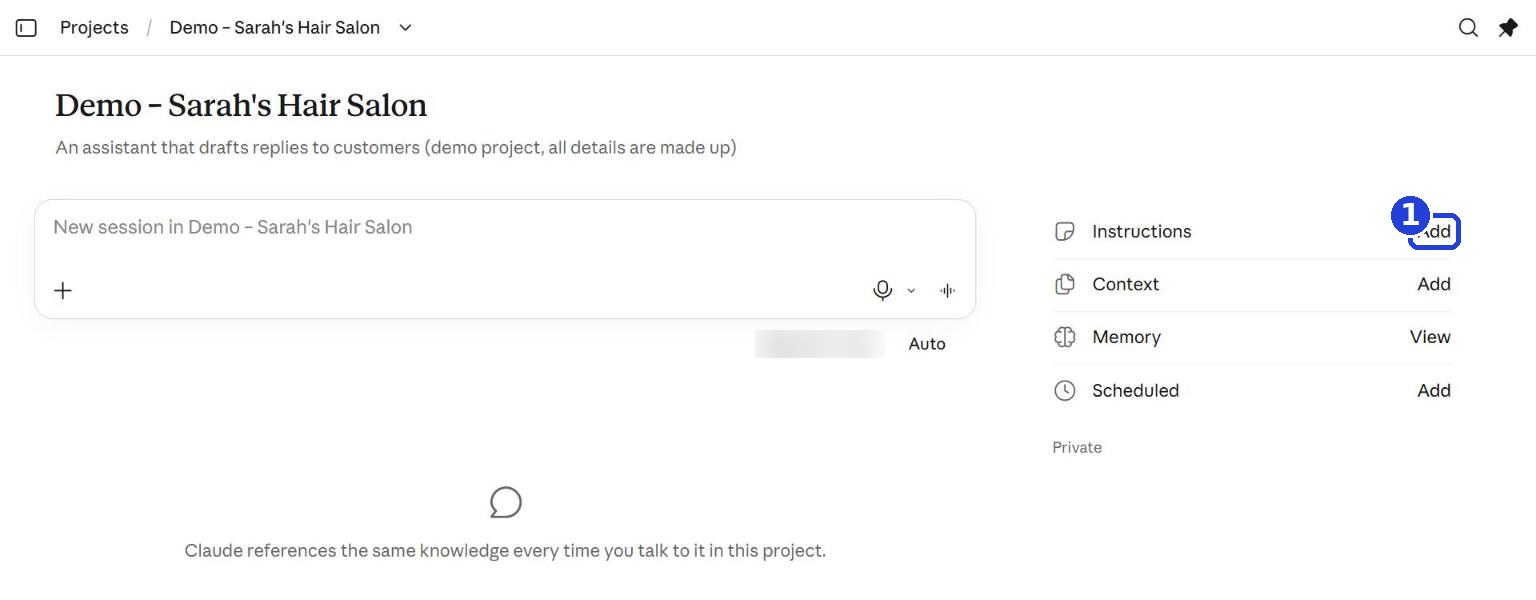
- On the project page, in the column on the side, on the Instructions line, click Add.
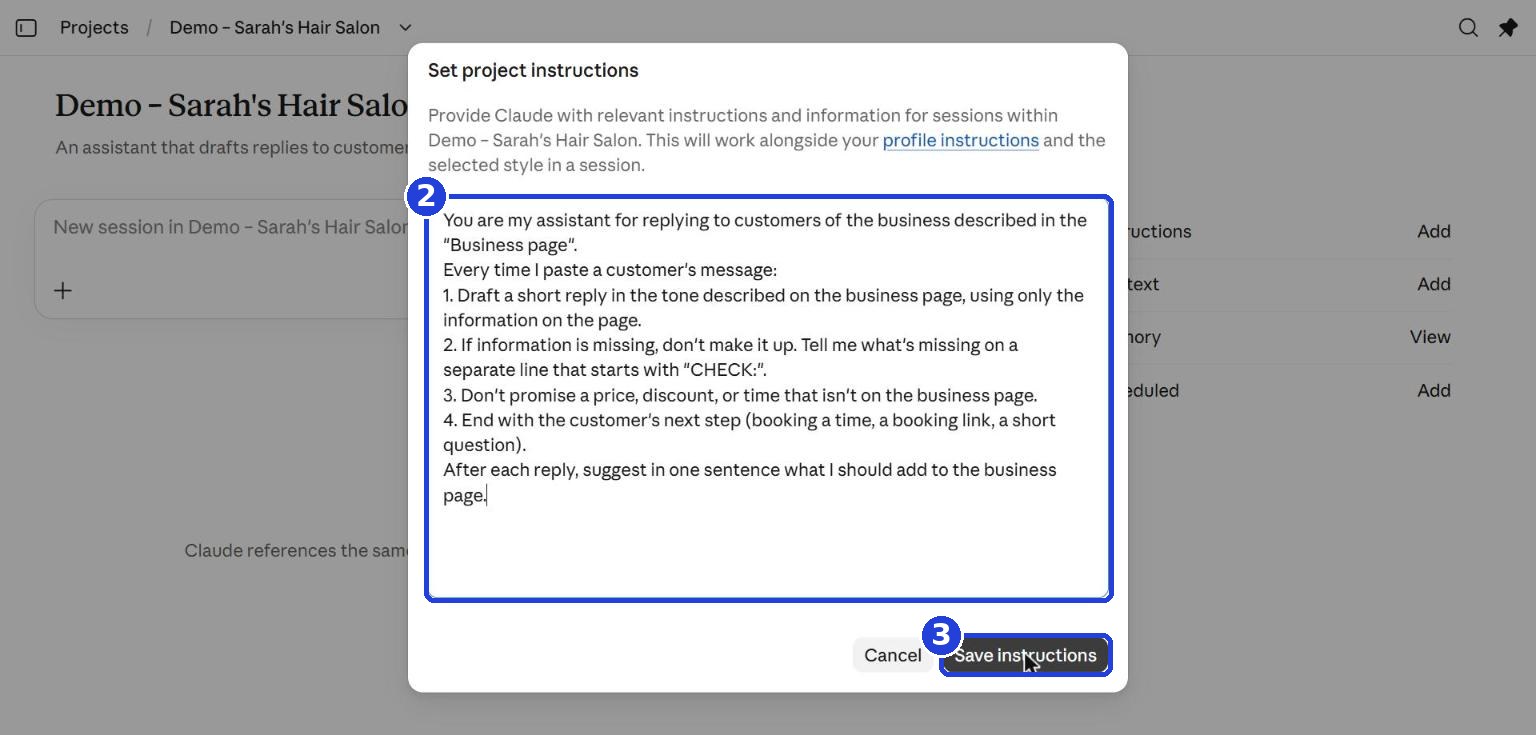
- A window opens. Copy this text and paste it into the big box:
You are my assistant for replying to customers of the business described in the "Business page".
Every time I paste a customer's message:
1. Draft a short reply in the tone described on the business page, using only the information on the page.
2. If information is missing, don't make it up. Tell me what's missing on a separate line that starts with "CHECK:".
3. Don't promise a price, discount, or time that isn't on the business page.
4. End with the customer's next step (booking a time, a booking link, a short question).
After each reply, suggest in one sentence what I should add to the business page.
- Click Save instructions.
Add your "Business page"
Check: after saving, the instructions line says Edit instead of Add. That's how you know they were saved.
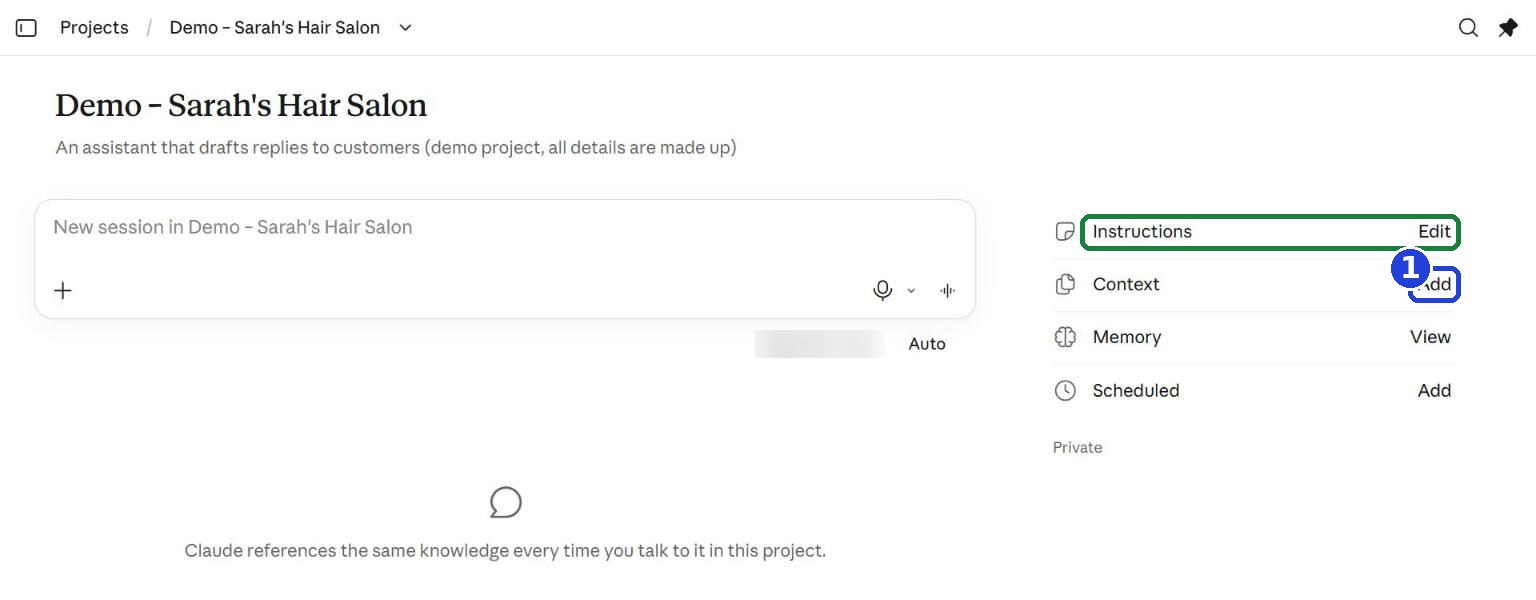
- One line below, on the Context line, click Add. Careful: that's the second Add, not the one for the instructions.
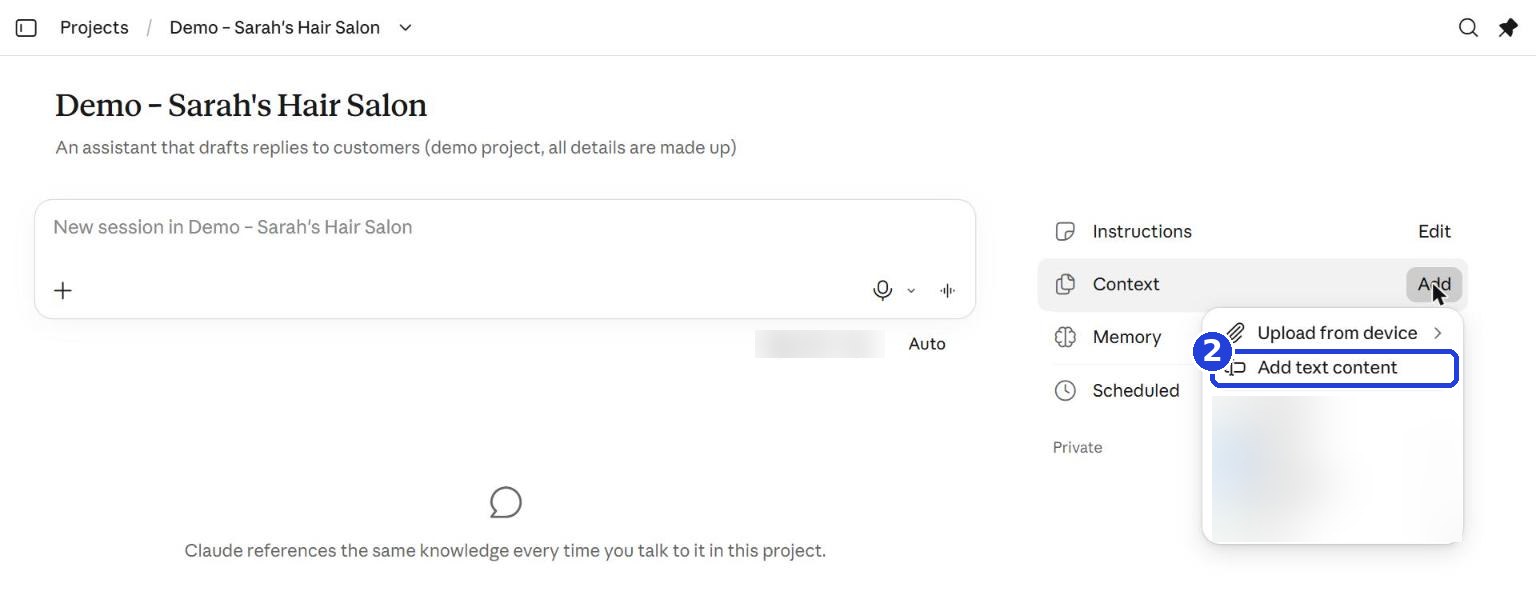
- In the menu that opens, choose Add text content.
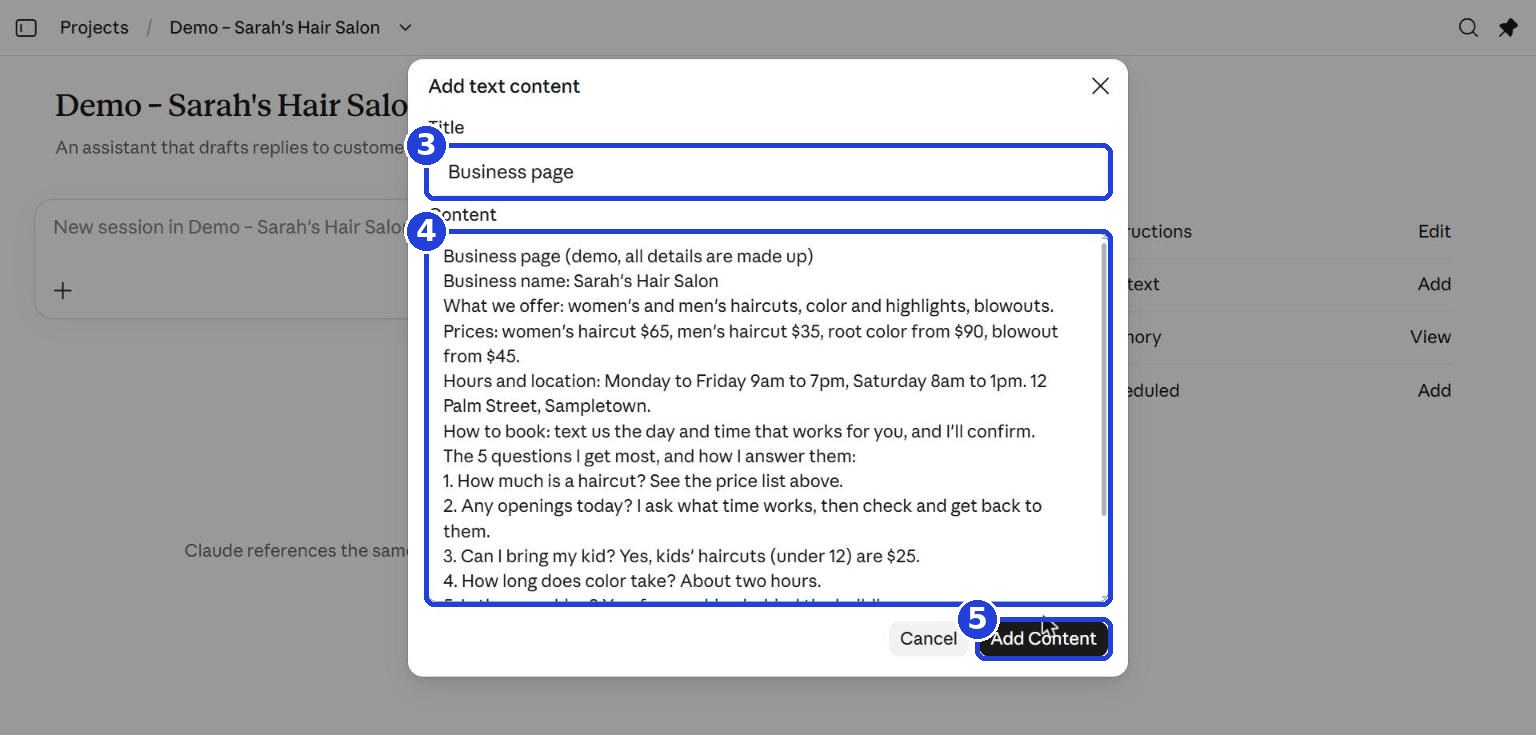
- In the Title box, type: Business page.
- In the Content box, paste the business page you filled in at step 1.
- Click Add Content.
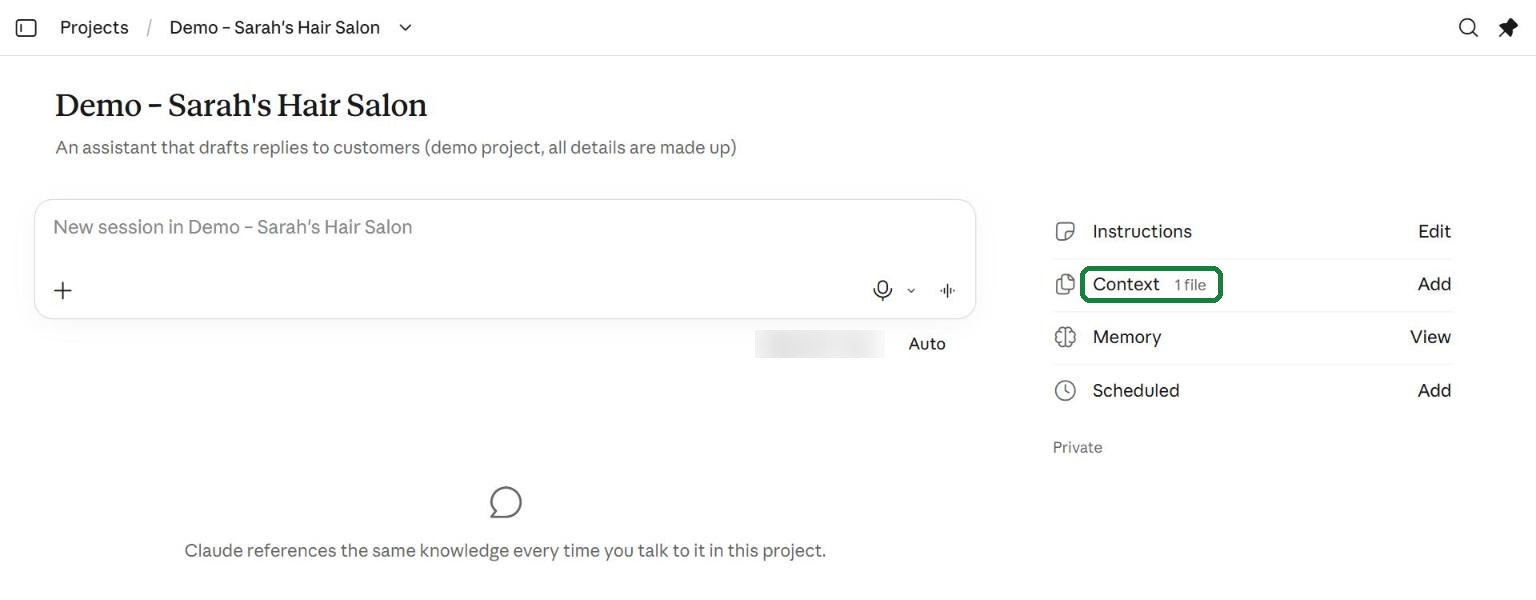
Check: next to Context it now says 1 file.
Already have your business page as a file (Word or PDF)? In the menu from part 2, choose Upload from device instead.
Test it with a real message
Did the assistant get something wrong? Jump to "Wrong, or missing information?"
- On the project page, in the message box (it says New session in and the project name), paste a real customer message.
- Click the orange arrow, or press Enter.
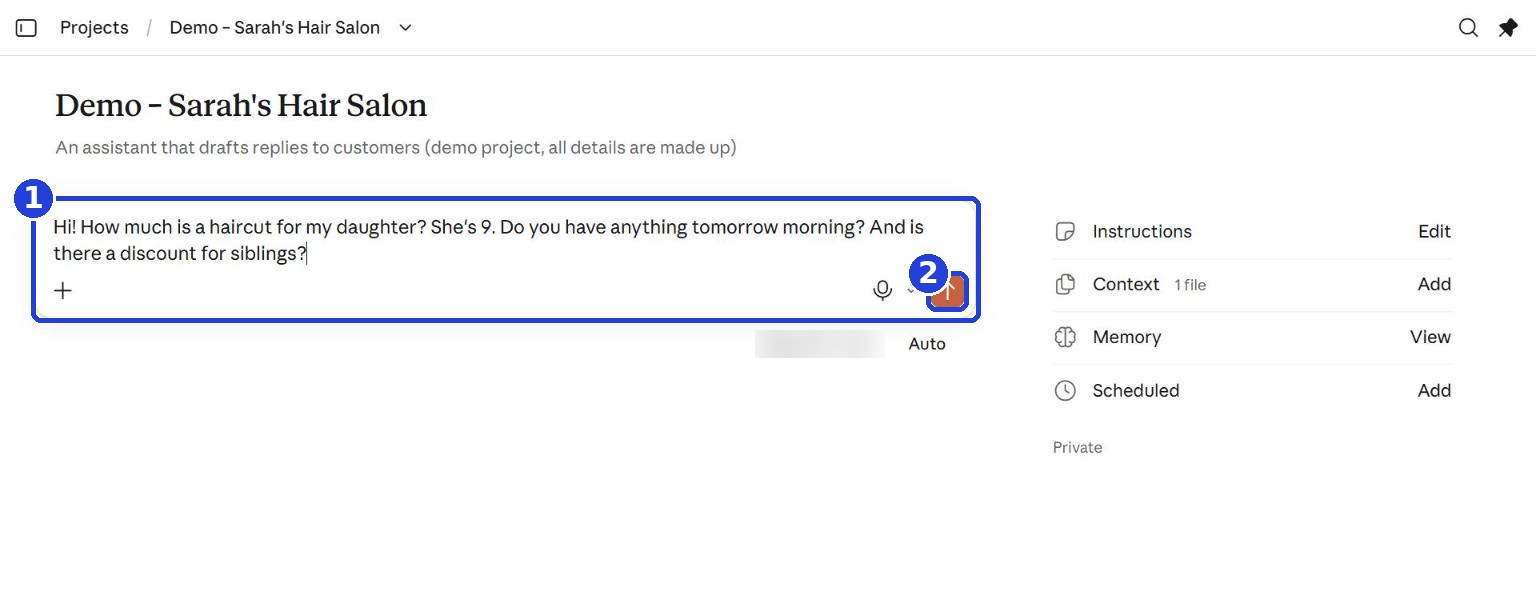
A chat page opens, and then the reply arrives. Check:
- Are the price and the details right?
- Does it sound like you?
- When something was missing, did it write "CHECK:" instead of making it up?
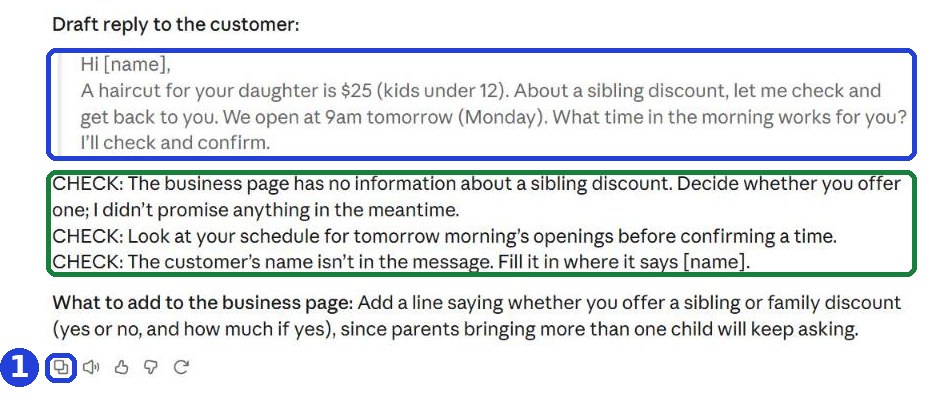
Read only, there's no copy button here: this is the reply from the screenshot, as text:
Draft reply to the customer:
Hi [name],
A haircut for your daughter is $25 (kids under 12). About a sibling discount, let me check and get back to you. We open at 9am tomorrow (Monday). What time in the morning works for you? I'll check and confirm.
CHECK: The business page has no information about a sibling discount. Decide whether you offer one; I didn't promise anything in the meantime.
CHECK: Look at your schedule for tomorrow morning's openings before confirming a time.
CHECK: The customer's name isn't in the message. Fill it in where it says [name].
(Without the business page suggestion at the end.)
Before you send it to the customer: the "CHECK:" lines are for you, not the customer. The easy way: click the copy icon under Claude's reply (the first small icon, two overlapping squares), paste it into your notes, delete the "CHECK:" lines and replace [name] with the real name. Send the rest to the customer.
Wrong, or missing information? Don't argue with it. Fix the business page on your side (in your notes or document from step 1), and replace it in the project:
- On the project page, click the word Context itself, not the Add next to it.
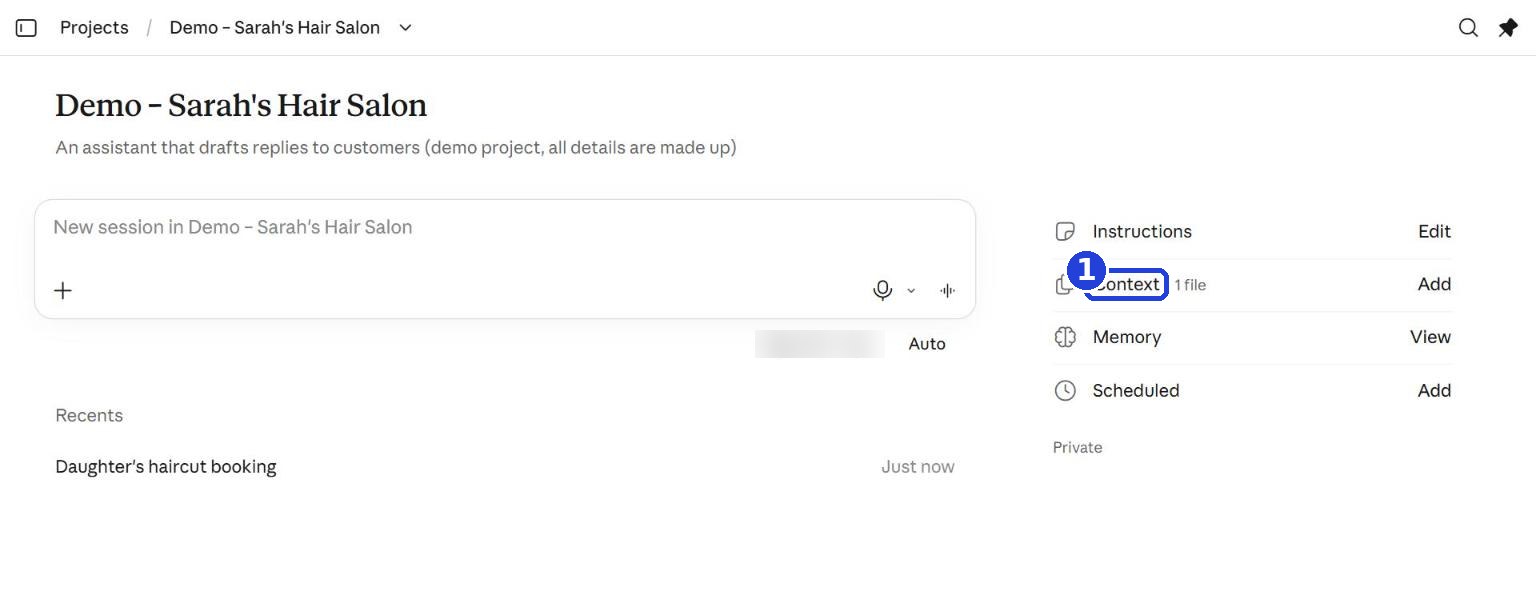
- A window opens with a list that includes "Business page". Don't click Add or Select here. Point your mouse at the Business page line, and three dots (…) appear at its end. Click them.
- Click Remove from project.
- Close the window (the X at the top), and add the updated page exactly like in step 4.
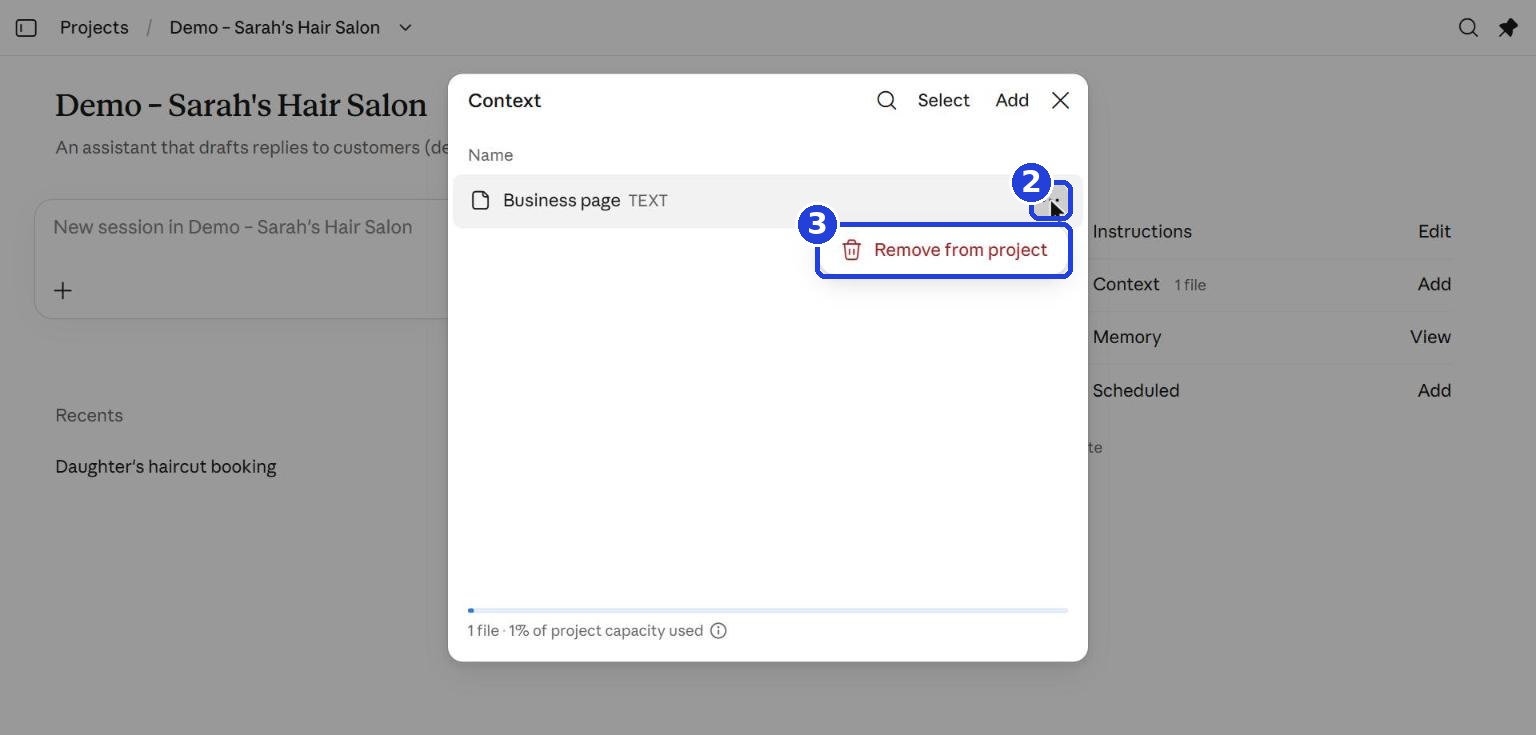
After every change, test again in a new chat from the project page (every customer message = a new chat). Do it with all 3 messages.
Use it every day
Every new customer message:
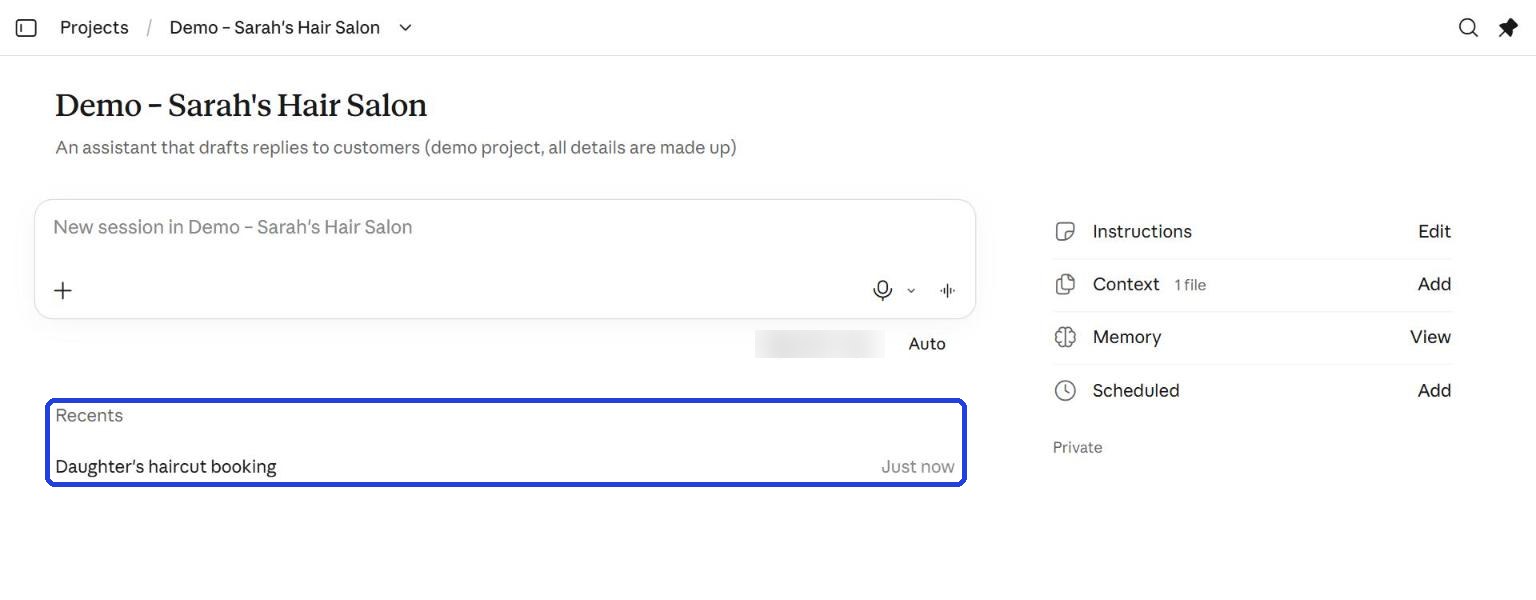
- Open Claude, click Projects in the menu, and pick your business project.
- Paste the message into the box at the top of the page. Every message gets a new chat, so it doesn't mix up customers.
- Read it, copy the reply and send it to the customer.
Once a week, add the new questions you got to your business page (and replace it in the project, like in step 5).
Keep in mind: always read before you send. The assistant drafts, you decide. Don't paste customers' sensitive details, like Social Security numbers, credit cards or medical information.
Only have a phone?
You can do this in the Claude app, in a regular chat:
- In one note on your phone, keep the instructions from step 3, and under them the business page you filled in (step 1). That way you copy both at once.
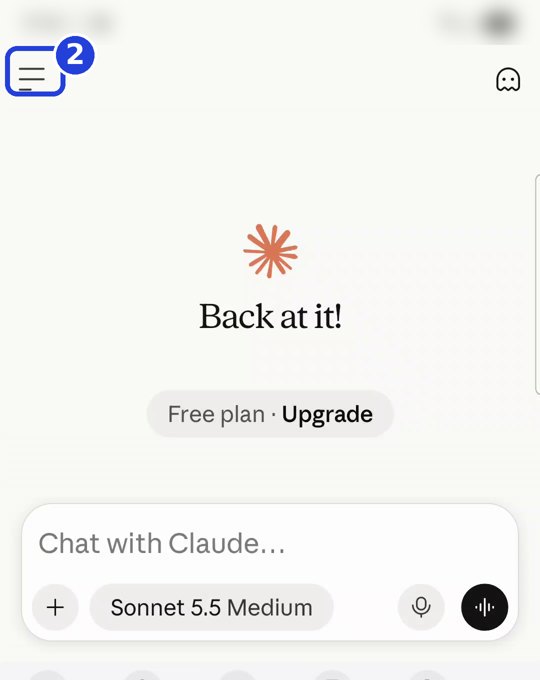
- In the app, tap the three lines at the top left (the menu).
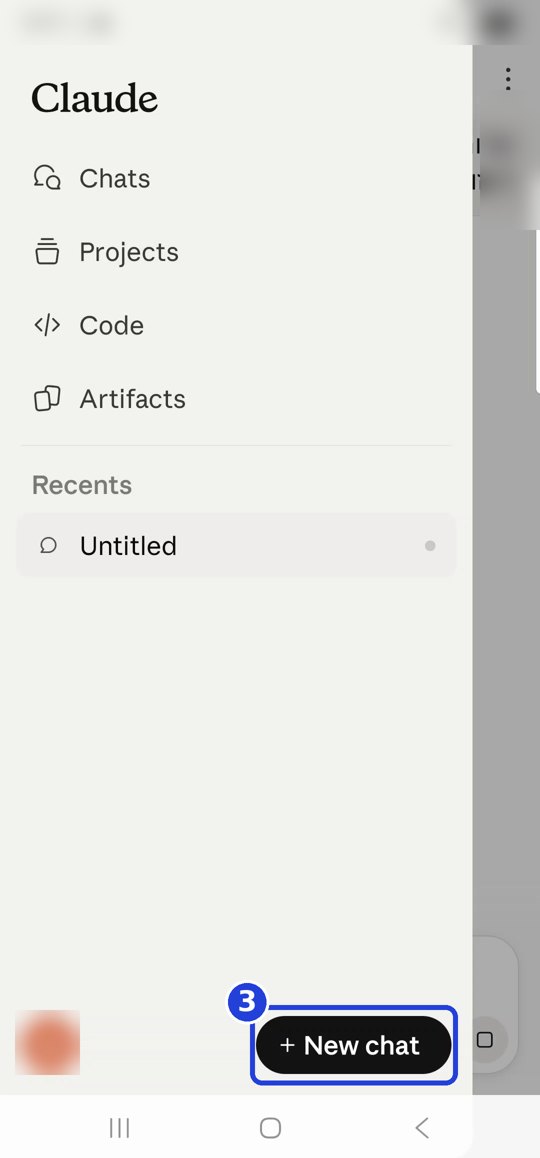
- Tap New chat at the bottom.
- In the message box, paste the note (instructions + business page), and under it write "The customer's message:" and paste it. Send with the arrow.
- Next customer? New chat again, and again: the note, then the customer's message under it.
Check the reply as in step 5. To send it: copy it (with the copy button under it), paste it into your notes, delete the "CHECK:" lines and replace [name] with the real name. Then copy it and send it to the customer.
The difference from a computer: in a project, the instructions are saved for good; in a regular chat, you paste them every time. (The app also has Projects in the menu, but this guide shows the project on a computer.)
Don't want to wait?
All the steps, prompts and templates right now, in one place, ready to copy: $1.99.
Pay once. Yours for good, including everything we add.
Training material and tools, with no promise of income.
Secure payment through Polar. The link to the pack arrives right after payment, by email too. Full refund within 14 days.
What's next
Next guide: Your business's first website. Two messages, and Claude builds a page for your business with a "Text us to book" button.
Want the next guide? We'll email it to you.
We'll email you the next guides, tips and updates from Team in a Box. Unsubscribe anytime.