
Free guide · Claude from Zero · Guide 3
Your business's first websiteClaude builds a page for your business in two messages
This is the moment you see that Claude isn't just a chat. No tech skills, nothing to build yourself: you tell it what you want, and it builds a real page you can see, change and send.
Your screen may look a little different (for example, the page design, or the name under the message box). That's fine. These screenshots are from a computer; on a phone everything is in the same order, just arranged differently. Click any screenshot to see it bigger.
Message 1: ask for the page
Have the business project from guide 2 (with the "Business page")? Open it and copy the message under "With a project". No project? Start a new chat (on a computer: the new chat button at the top of the side menu, called New chat or New. On a phone: the pencil icon at the top), and copy the message under "No project".
"Landing page" = one page that shows your business. "Bio" = the short text on your profile, for example on Instagram.
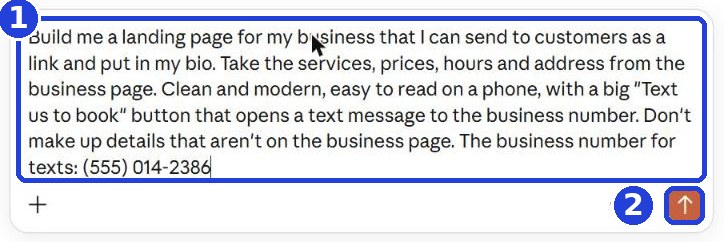
With a project: paste the message into the project's message box (1).
Build me a landing page for my business that I can send to customers as a link and put in my bio. Take the services, prices, hours and address from the business page. Clean and modern, easy to read on a phone, with a big "Text us to book" button that opens a text message to the business number. Don't make up details that aren't on the business page. The business number for texts:
After you tap "Copy": click inside Claude's message box and paste. On a phone: press and hold in the box, then tap "Paste". On a computer: Ctrl+V (on a Mac: Command+V).
At the end, right after the colon of "The business number for texts:", type your business's real mobile number, as usual (for example (555) 123-4567). No address on your Business page? Add it right after the number: "Address:" and the address (not sure? add it anyway, it does no harm). Click the send arrow (2).
No project: first type your business details in the box: the business name, services and prices, hours and address. Go down a line, and only then tap "Copy" below and paste the message under your details. Type the number at the end, and click the send arrow.
A new line in the box: on a phone, the Enter key. On a computer, Shift and Enter together, because Enter alone sends the message.
Here are my business details (above). Build me a landing page for my business that I can send to customers and put in my bio. Clean and modern, easy to read on a phone, with a big "Text us to book" button that opens a text message to the business number. Don't make up details I didn't write. The business number for texts:
Claude builds the page
When Claude finishes writing, the page is ready. On a computer it opens in a panel next to the chat. On a phone it shows up as a card inside the reply: tap it to open. Scroll down to see the whole page.
Don't see a page? If Claude asked a question, answer it briefly, or write "You decide". If you see code instead of a page, write "Show it as a page, not code". If you see a message about a usage limit (it happens on the free plan), wait until the time it shows and try again.
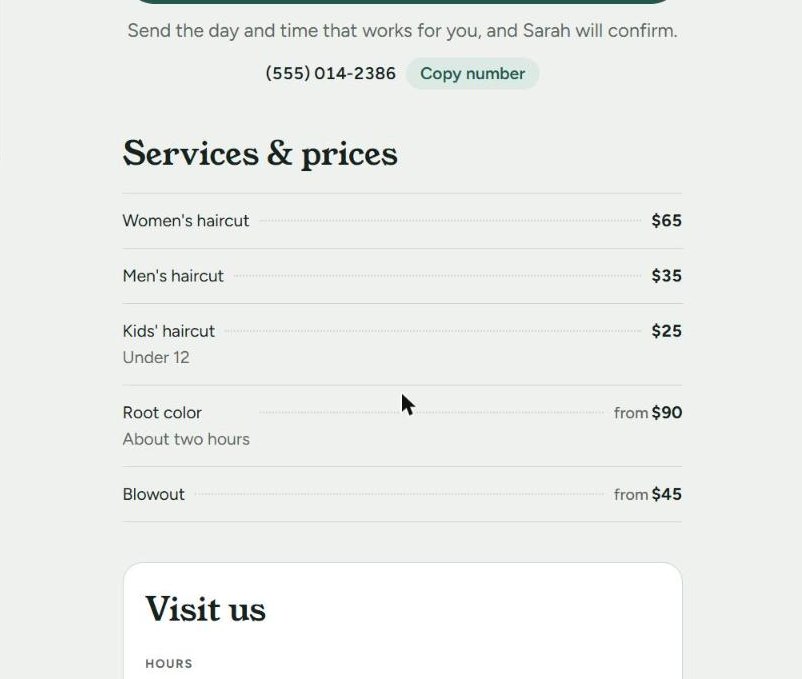
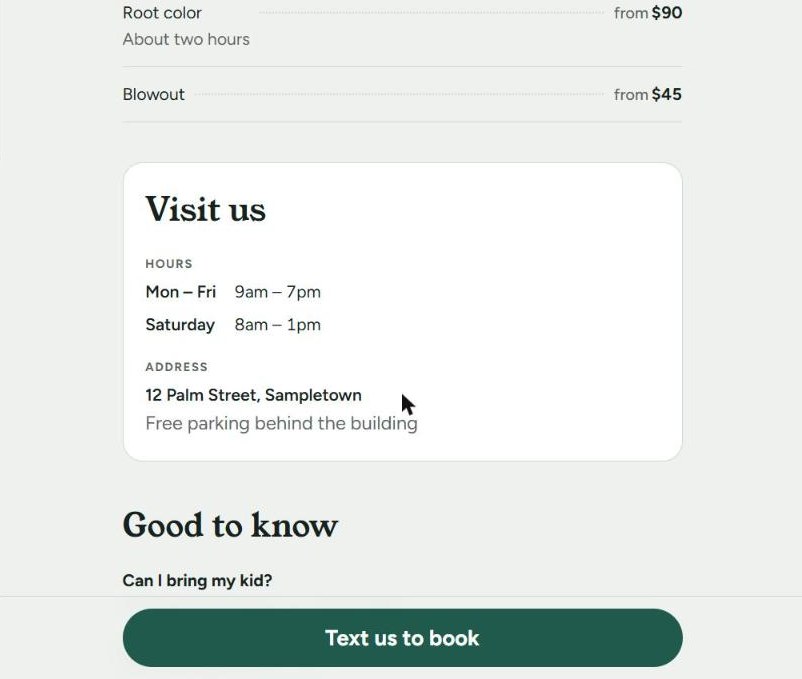
Check it before you send it: Claude takes the details from what you gave it, but read every price, hour and address. Something wrong? Write underneath what to fix.
If Claude says the page is "published" and gives you a link: on the free plan, that link only opens for you. Send it to customers the ways in step 5.
Message 2: change what you want
Want different colors, a welcome line or one more detail? Write it in the box at the bottom, like you would to a person. This is just an example; write your own colors and wording:
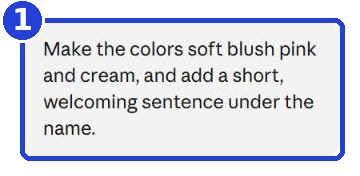
Make the colors soft blush pink and cream, and add a short, welcoming sentence under the name.
In the screenshot: the message we sent (1), and then the page after the change. More examples: "Make it blue and white", "Add a line about parking", "Remove the hours".
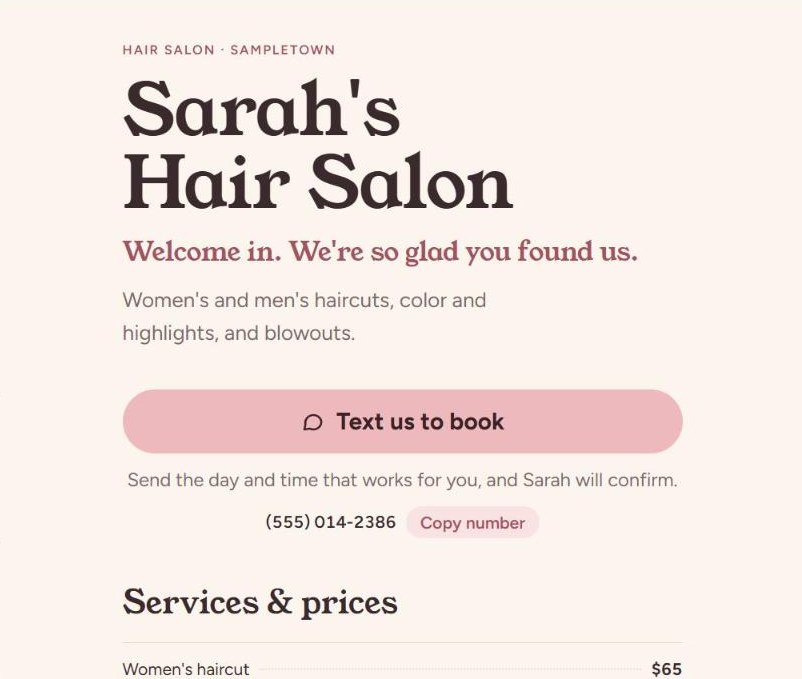
Test the "Text us to book" button
The button is made for phones: on the page itself, tapping it opens the Messages app with a text to your business number. First check that the number written on the page is right.
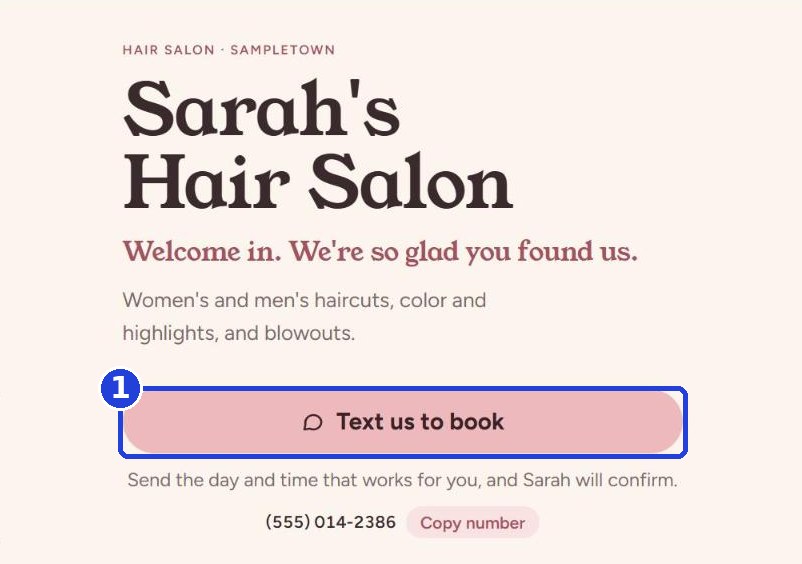
- Inside Claude (on a computer or in the phone app), clicking it may do nothing, or open a "Pick an app" window. That's normal, the page isn't broken. The real test is on your phone, from the page file you'll download in step 5: there you tap it and check that a text to your number opens (don't send anything).
- Opens the wrong number? Write to Claude: "The button should open a text to" and your number. Then download the new file and test again (the old file doesn't change).
Don't send customers a page with a number you haven't tested.
Send it to your customers
There are two ways, and both work on the free plan.
Way 1: the page file (with a button that usually works). With the page open, click Share above it (on a phone: the arrow pointing up). Go to the Export tab (1), and click the download arrow next to HTML (2). On the free plan, the window may only offer the export: that's fine, it's the same download.
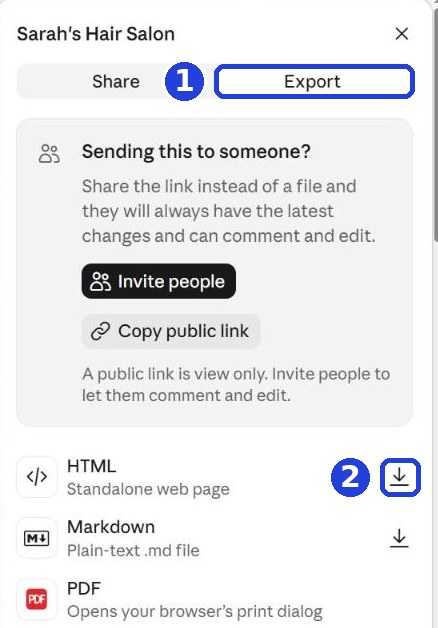
No Export on your phone? Use way 2, or download the file from a computer.
"HTML" = the file type of a web page. It's the page itself, as one file.
Send it to yourself first and test it. Email it to yourself as an attachment (in Gmail on a phone: the paperclip, then choose the file from Downloads). Open the email on your phone and tap the file: on most phones it opens in the browser, like a website. Tap the button there and check that a text to the right number opens. If it opens as strange text, or doesn't open, send customers a screenshot (way 2).
The test worked? Send the same file to customers the same way, as an email attachment. In a text message some phones won't open it, so for texts a screenshot (way 2) is safer.
Way 2: a screenshot of the page. The simplest, but in a picture the button doesn't work, and you only get what's on the screen. Good for showing the business and the prices.
- iPhone: press the side button and the volume up button together (iPhone with a Home button: Home and the side button).
- Android: press the power button and the volume down button together.
- Windows computer: press the Windows key, Shift and S together, and drag over the page with the mouse.
- Mac: press Command, Shift and 4 together, and drag over the page.
Then send the screenshot like any photo: in a text, an email or WhatsApp.
Want a link of your own? (for your bio, Google, anywhere)
A link anyone can open with one tap, with a button that works. Two ways:
A. A paid Claude plan
Not paying for Claude? Then you're on the free plan: skip to way B. On the free plan, sharing a link isn't included.
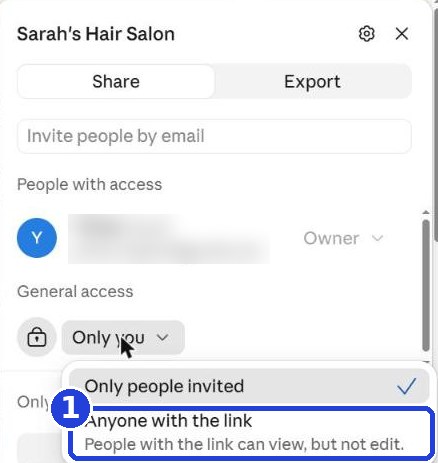
Above the page, click Share. Under General access, open the choice and pick Anyone with the link (1). Then copy the link with the copy link button at the bottom of the window, and send it or put it in your bio. Open it once on your phone and tap the button to check it.
B. On the free plan, with a service called Netlify (from a computer)
This is a computer method. We haven't tested it from a phone. Only have a phone? Use the ways in step 5.
Netlify is a website hosting service with a free plan. It isn't related to Claude or to us, and its terms can change, so keep your file. Here's how:
- Download the page file, as in step 5 (Share → Export → HTML). On a computer, it's saved to your Downloads folder.
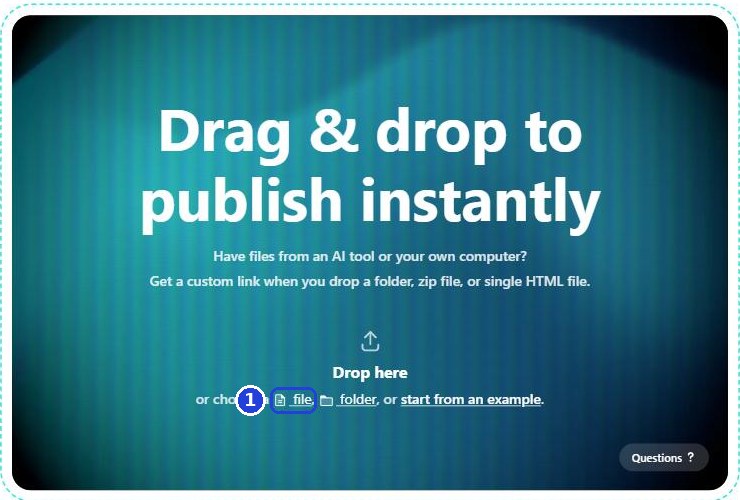
- Type app.netlify.com/drop in the address bar at the top of your browser. Click the word file (mark 1 in the screenshot), and choose the file you downloaded (in Downloads, usually the newest file, ending in .html).
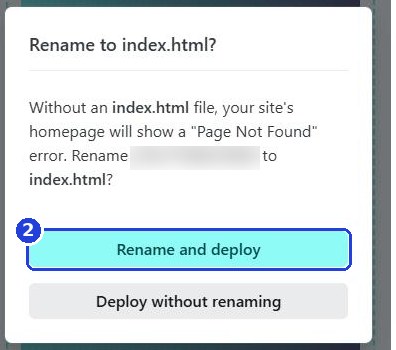
- If a Rename to index.html? window opens, click the top button, Rename and deploy (mark 2). It only renames the file so the page opens.
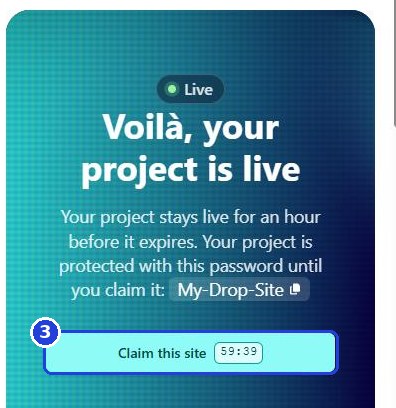
- The page goes up, but for now the link only works for an hour and is password protected. You don't need that password. To keep the link: click Claim this site (mark 3), and sign in or sign up to Netlify (a free account, for example with your Google account). If it asks more questions (like confirming your email), answer and continue.
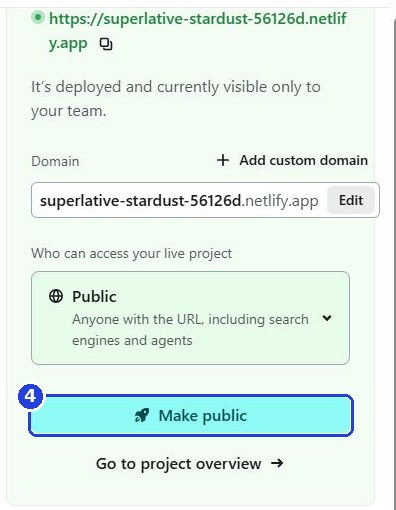
- After you sign in, it says the site is visible only to you (visible only to your team). Even if the green box already says Public, click Make public (mark 4), and the link opens for everyone.
- Copy the link from the green part at the top: the address that ends in netlify.app (next to the copy icon). Open it once on your phone and tap the button to check it.
What else can you build this way?
Exactly the same way, just with a different request:
- "Make me a designed price list I can send by text." (There's a whole bonus guide for this one.)
- "Make me a designed menu" (for a restaurant or a coffee shop).
- "Make me a special offer card for Instagram."
- "Make me a page with answers to the questions customers ask."
Keep in mind: Claude designs with text, colors and shapes. It doesn't take or create photos of people or of your business. Want a real photo? Add it yourself after the page is ready.
Claude can make mistakes. Check every price, hour, address and number before you send it, and don't promise customers anything you haven't decided on.
Don't want to wait?
All the steps, prompts and templates right now, in one place, ready to copy: $1.99.
Pay once. Yours for good, including everything we add.
Training material and tools, with no promise of income.
Secure payment through Polar. The link to the pack arrives right after payment, by email too. Full refund within 14 days.
Want the next guide? We'll email it to you.
We'll email you the next guides, tips and updates from Team in a Box. Unsubscribe anytime.
Earlier guides
Guide 1 · Set up Claude the right way · Guide 2 · Your first helper · All guides
All the guides: getteaminabox.com/guides