
Free guide · Claude from Zero · Bonus
Claude builds you a price listIn one message, and you change it in one sentence
This is the moment you see that Claude isn't just a chat. It doesn't only answer in words: it builds something real that you can see, change and send.
Your screen may look a little different (for example, the name under the message box, or how the price list card looks). That's fine. These screenshots are from a computer; on a phone everything is in the same order, just arranged differently. Click any screenshot to see it bigger.
Tell Claude what you want
Did guide 2 on a computer? Open your business project (it already has the "Business page" with your prices), and copy this into the message box (1):
Make me a designed price list for my business that I can send to customers by text. Use the services and prices from the business page. Clean and inviting, with the business name at the top and a contact line at the bottom.
After you tap "Copy": click inside Claude's message box and paste. On a phone: press and hold in the box, then tap "Paste". On a computer: Ctrl+V (on a Mac: Command+V).
No project yet? No problem. Start a new chat and copy this. Replace what's in the square brackets with your details (and delete the brackets):
Make me a designed price list for my business, [business name], that I can send to customers by text. Here are the services and prices:
[paste your list here]
At the bottom, add: [phone / address / hours].
Clean and inviting, with the business name at the top.
Click the orange arrow (2).
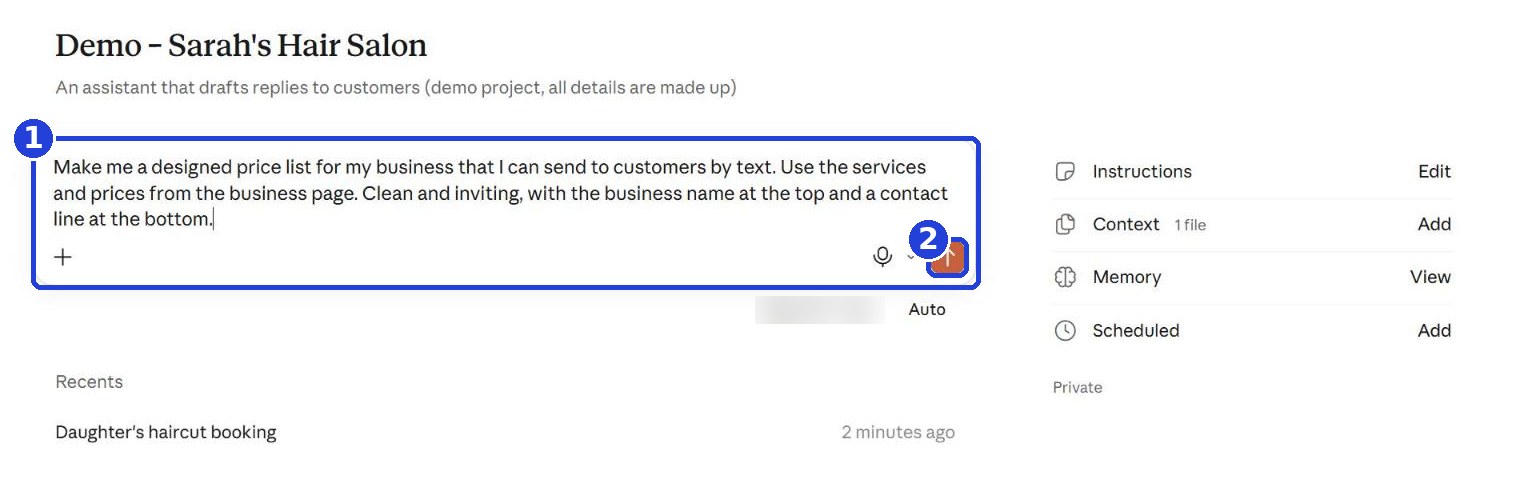
Claude builds the price list
When the price list is ready: on a computer, it opens in a design view next to the chat. On a phone, it shows up as a card inside the reply: tap it to open. If it doesn't open by itself, click the card with the price list's name.
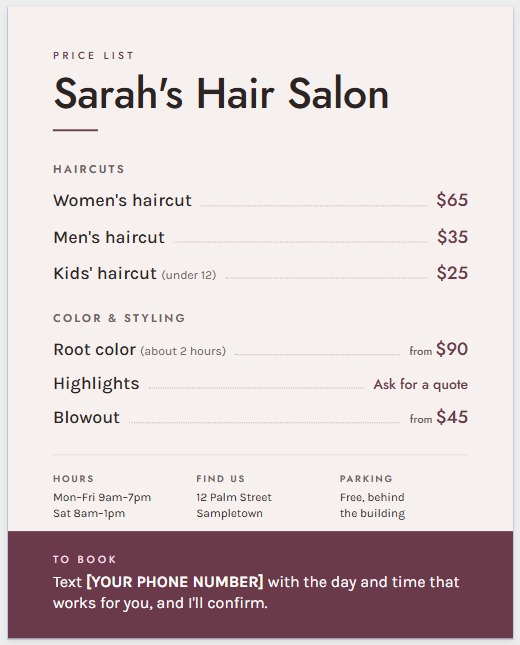
Check it before you send it: Claude takes the prices from what you gave it, but read every line. Missing a detail? Claude leaves a placeholder in square brackets, like [YOUR PHONE NUMBER] in our example. Just write to it: "My phone number is ...", and it fills it in.
Change it in one sentence
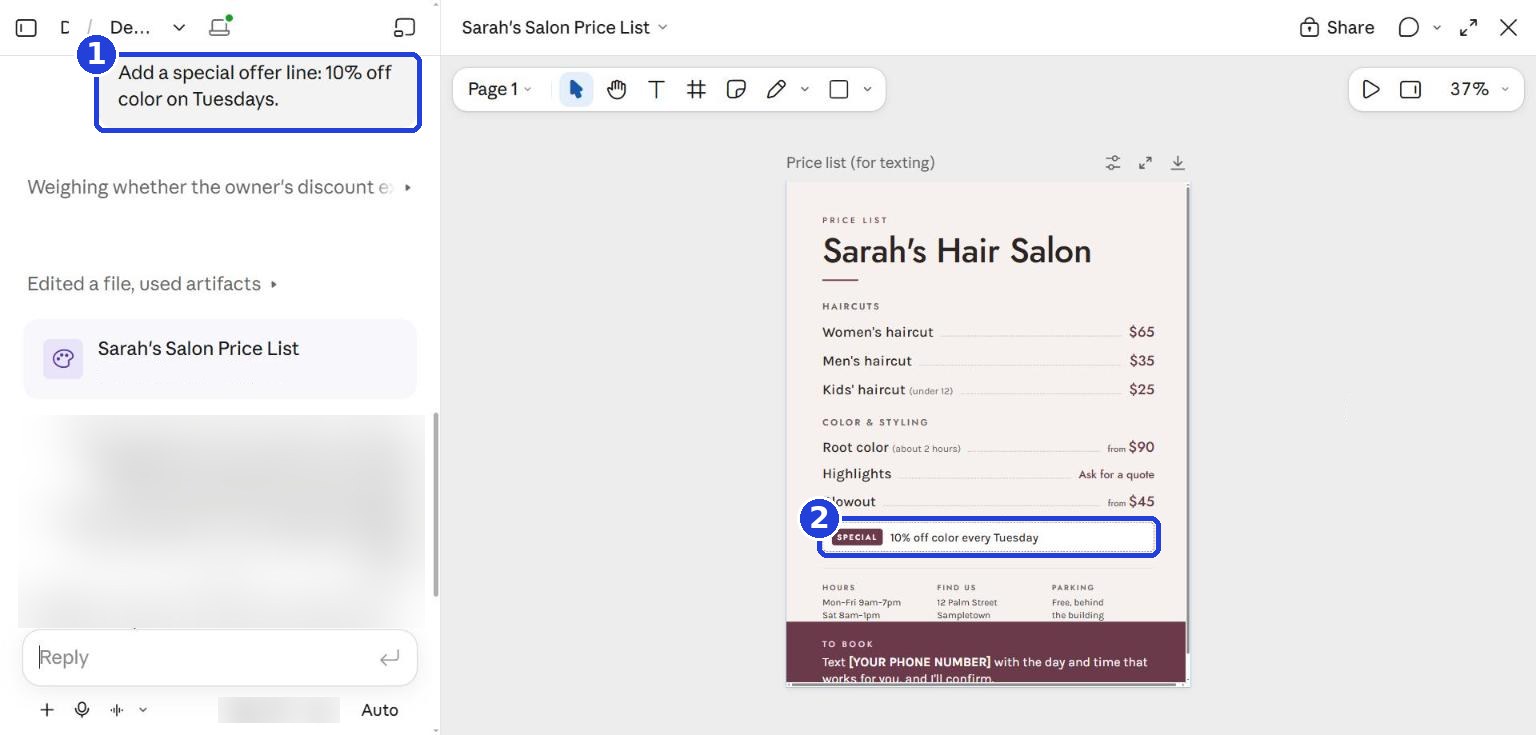
Want to add a special offer, change a color or remove a line? Write it in the box at the bottom, like you would to a person. For example (write your own offer in the brackets, or skip this if you have none):
Add a special offer line: [your offer, for example 10% off color on Tuesdays]
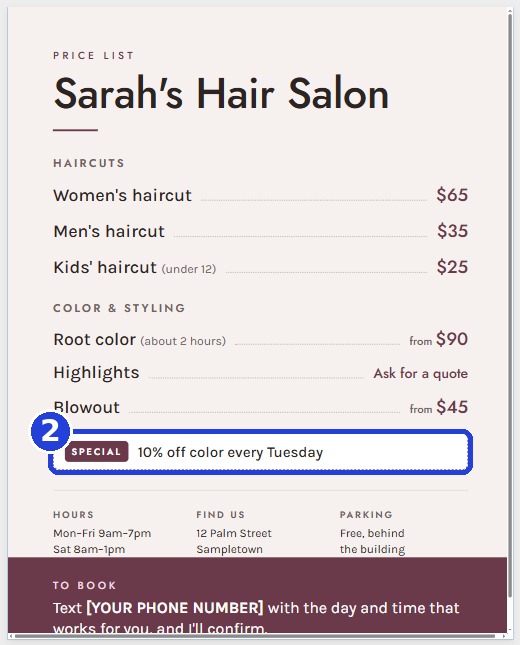
In the screenshot: the request after sending (1), and the offer line added to the price list (2). More examples: "Make it blue and white", "Remove the hours line", "Add a bridal updo for $150".
Send it to your customers
Download the price list as an image, and send it like any photo, by text, WhatsApp or email. On a phone? Go straight to "No download button?" below.
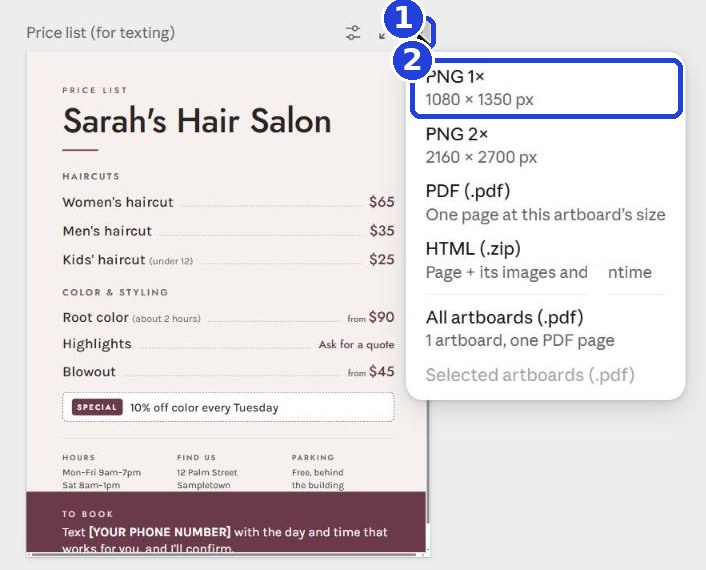
- Above the price list, at its top right corner, click the download button, the arrow pointing down (1).
- Choose the first option, PNG 1× (2). It's a regular image, sized for phones.
- If a window asks for permission to download a file, click Save file.
- The image is saved to your Downloads folder (on a phone: in Files or your photos). Send it from there, like any photo.
No download button, or no PNG option? Your screen may look different, for example on the free plan or on a phone. Then take a screenshot:
- iPhone: press the side button and the volume up button together (iPhone with a Home button: Home and the side button).
- Android: press the power button and the volume down button together.
- Windows computer: press the Windows key, Shift and S together, and drag over the price list with the mouse.
- Mac: press Command, Shift and 4 together, and drag over the price list.
On a phone, the screenshot captures the whole screen: tap the small preview that appears, choose "Crop" or "Edit", keep just the price list, then send.
What else can you build this way?
Exactly the same way, just with a different request:
- "Make me a small page for my business with my services, hours and address."
- "Make me a calculator where a customer picks services and sees the total."
- "Make me a special offer card for Instagram."
- "Make me a designed menu" (for a restaurant or a coffee shop).
Keep in mind: Claude designs with text, colors and shapes. It doesn't take or create photos of people or of your business. Want a real photo? Add it yourself.
Claude can make mistakes. Read every price, date and offer before you send it, and don't promise customers anything you haven't decided on.
Don't want to wait?
All the steps, prompts and templates right now, in one place, ready to copy: $1.99.
Pay once. Yours for good, including everything we add.
Training material and tools, with no promise of income.
Secure payment through Polar. The link to the pack arrives right after payment, by email too. Full refund within 14 days.
Want the next guide? We'll email it to you.
We'll email you the next guides, tips and updates from Team in a Box. Unsubscribe anytime.
Earlier guides
Guide 1 · Set up Claude the right way · Guide 2 · Your first helper · Guide 3 · Your business's first website · All guides
All the guides: getteaminabox.com/guides