
Free guide · Claude from Zero · Guide 4
Your content helperA plan for the week, and posts ready to go
Your screen may look a little different (for example, the name under the message box). That's fine. These screenshots are from a computer; on a phone everything is in the same order, just arranged differently. Click any screenshot to see it bigger.
"What do I post this week?" is the question that eats the most time. In this guide you teach Claude once what your business posts about, and then every week you get a plan, and every day a post ready to go. You just choose, add a real photo, and post.
Make a "content page" (just once)
Open your business project from guide 2 (on a computer: in the side menu; on a phone: the button with the lines at the top corner, then Projects and your project). The project page has a message box: anything you write there starts a new chat inside the project, and Claude already knows what you saved in it.
No business project? Skip to the "No project?" box below.
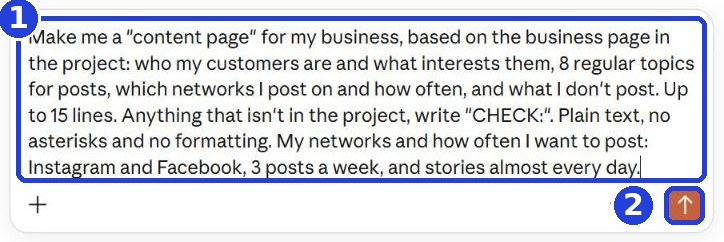
Copy the message and paste it into the box (1). At the end, after the colon, write which networks you post on and how often, and click the arrow (2). "Networks" = Facebook, Instagram, TikTok and so on. Not posting yet? Write the ones you want to start with.
Make me a "content page" for my business, based on the business page in the project: who my customers are and what interests them, 8 regular topics for posts, which networks I post on and how often, and what I don't post. Up to 15 lines. Anything that isn't in the project, write "CHECK:". Plain text, no asterisks and no formatting. My networks and how often I want to post:
After you tap "Copy": click inside Claude's message box and paste. On a phone: press and hold in the box, then tap "Paste". On a computer: Ctrl+V (on a Mac: Command+V).
No project? Start a new chat (on a computer: New chat or New at the top of the side menu; on a phone: the pencil icon at the top). First type your business details in the box: what you sell, prices, hours and address. Go down a line, and only then copy this message and paste it under your details. Write your networks at the end, and send:
A new line in the box: on a phone, the Enter key. On a computer, Shift and Enter together, because Enter alone sends the message.
These are my business details (above). Make me a "content page" for my business, based on them: who my customers are and what interests them, 8 regular topics for posts, which networks I post on and how often, and what I don't post. Up to 15 lines. Anything I didn't write, write "CHECK:". Plain text, no asterisks and no formatting. My networks and how often I want to post:
Without a project, keep the content page yourself, as explained at the end of step 2.
Claude writes a short page: who your customers are, 8 regular topics, where and how often, and what you don't post. A "story" is a photo or short video that disappears after a day. A "reel" is a short video that fills the phone screen.
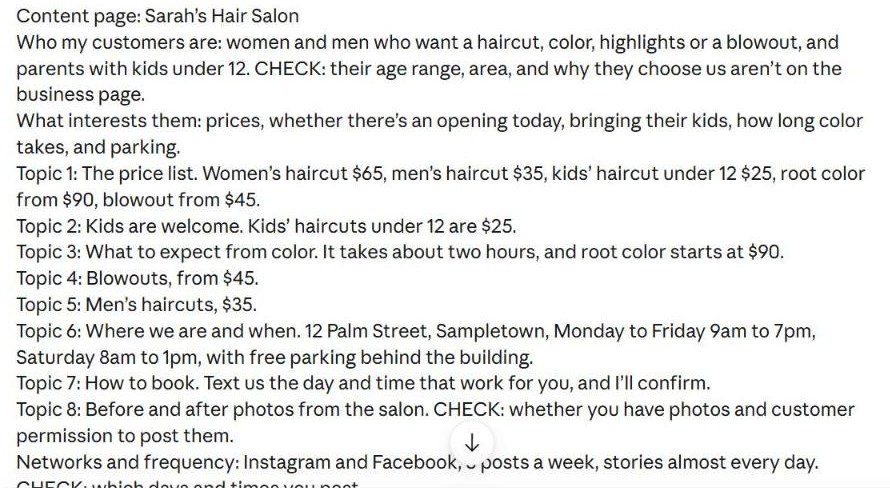
"CHECK:" lines are things Claude didn't find in your project, so it didn't make them up. Answer them in your next message (for example "I post on Mondays, Tuesdays and Thursdays. Write the page again, in full"). A CHECK can also sit inside a sentence: then it's the part from "CHECK:" to the period. Copy the page from the latest answer.
Save the content page in your project
No project? Copy the page with the button marked 1 just below, then skip to the notes route at the end of this step.
On a phone: the option to add text to a project isn't always in the app. If it's missing, open claude.ai in your phone's browser (Chrome on Android, Safari on iPhone), sign in with the same account, and stay on the website if it offers to open the app. Go to the project, and it's there. Or use the notes route at the end of this step.
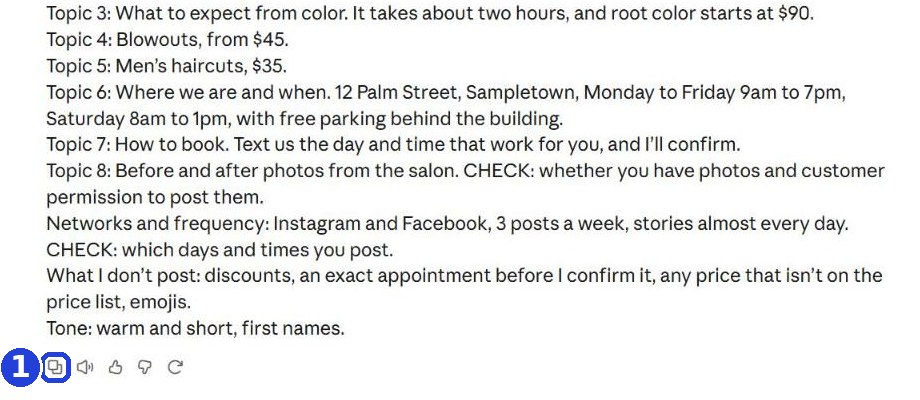
Copy the page with the first button on the left under the answer (an icon of two pages; scroll to the end of the answer) (1).
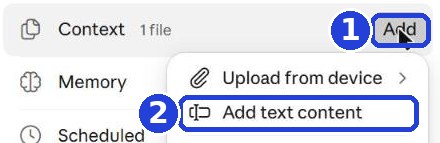
Go back to the project page: on a computer: in the side menu; on a phone: the button with the lines at the top corner, then Projects and your project. On a computer you can also click the project name at the top of the chat. On the project page (on a computer: the panel on the side; on a phone: scroll down the project page), next to Context (the project's files), click Add (1), and choose Add text content (2).
In Title (1), type "Content page". In Content (2), paste what you copied. Any "CHECK:" lines left, or a sentence from Claude before or after the page? Delete them here, in the box. Click Add Content (3).
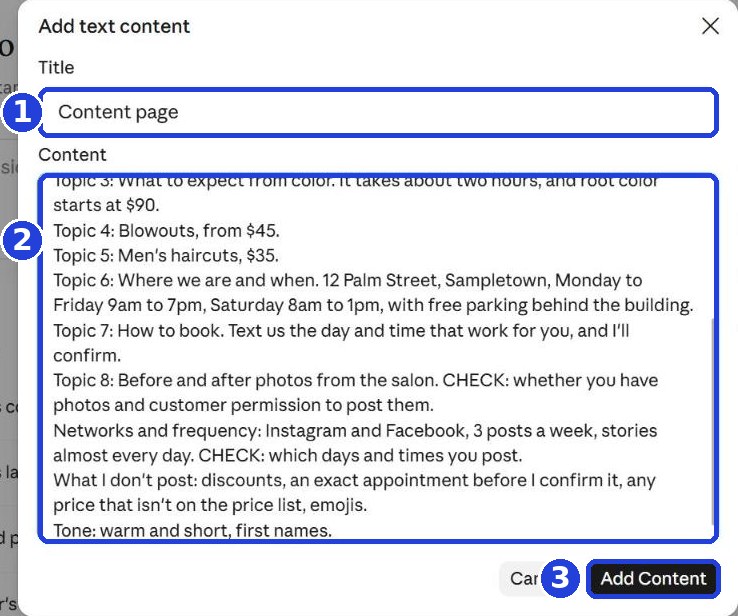
Can't save it in the project? Copy the page (the first icon under the answer), delete any "CHECK:" lines and Claude's sentences before or after it, and keep it yourself (for example in your phone's notes). In every chat: first paste the content page into the box, go down a line (on a computer: Shift and Enter together, because Enter alone sends; on a phone: Enter), and only then copy the request from here and paste it under it. Claude will understand the content page is what's written above.
A plan for the week
No project? Start a new chat, paste your content page first, go down a line, then paste this message under it, and write what's special this week at the end (nothing special? "a regular week"). See the notes route at the end of step 2.
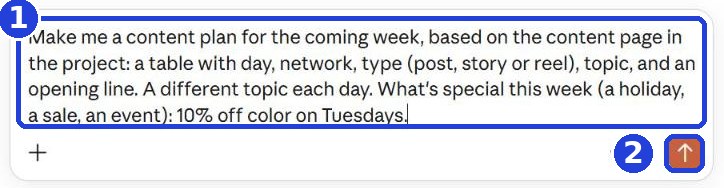
Go back to the project page (on a computer: in the side menu; on a phone: the button with the lines at the top corner, then Projects and your project. On a computer you can also click the project name at the top of the chat), and start a new chat from its box. Copy the message, and at the end, after the colon, write what's special this week: a holiday, a sale, an event. Nothing special? Write "a regular week".
Make me a content plan for the coming week, based on the content page in the project: a table with day, network, type (post, story or reel), topic, and an opening line. A different topic each day. What's special this week (a holiday, a sale, an event):
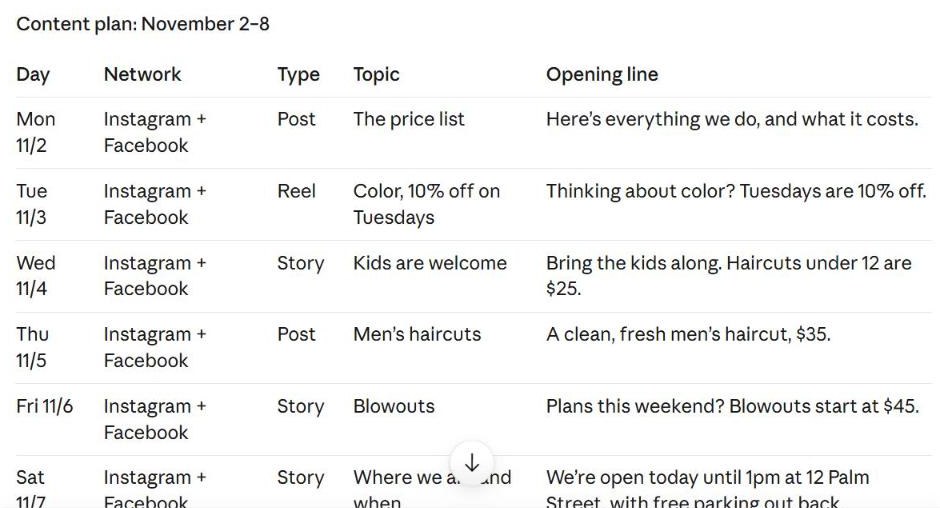
Claude builds a table for the week: day, network, type, topic and an opening line.
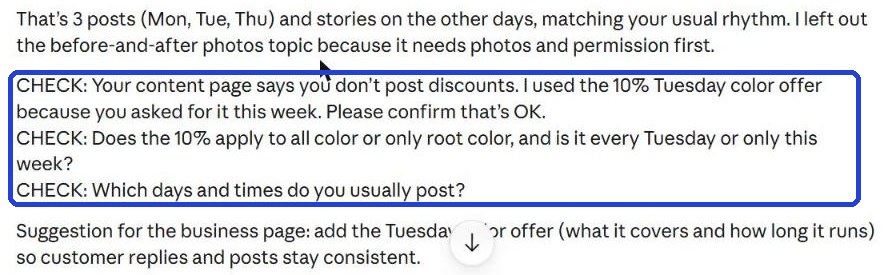
Under the table, Claude also writes what to check (in the frame). Read it, and fix what's needed: "I'm closed on Wednesday", "No reels this week".
A post ready to go, plus a story and a group text
In the same chat, under the plan, ask for the post of one of the days. Paste the message, and before you send it, change "Thursday" in the box to the day you want (click the word, delete it and type; on a phone, double-tap the word). Pick a day marked Post in the table.
Write the Thursday post from the plan, in my voice, ready to copy. After it, separately: a short text for a story, and a short message for my customers' group text about the same topic. Plain text, no asterisks and no formatting.

Claude writes three texts: the post (1), a short text for a story (2), and a message for your customers' group text (3).
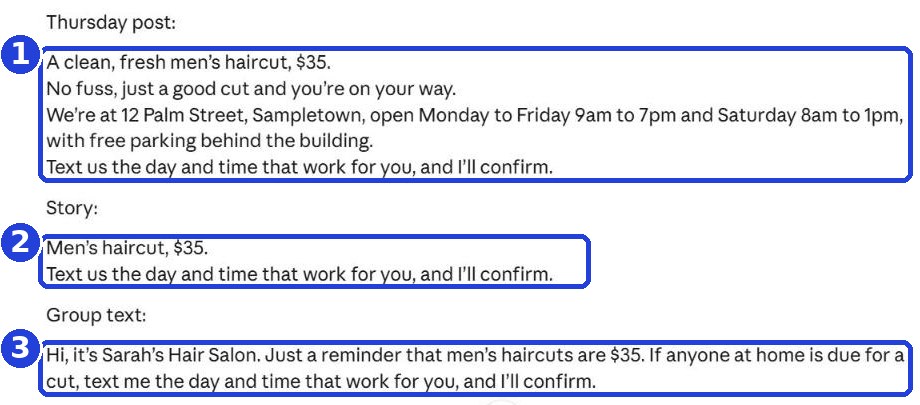
Copy each text separately. The first button on the left under the answer (an icon of two pages; scroll to the end of the answer) copies the whole answer, including Claude's notes, so don't copy with it right away. The simplest way: first read and answer the "CHECK:" lines, if there are any. Then write to Claude "Just the post, with nothing before or after it", and copy the new answer with the same button. You can also select it yourself: on a computer, drag the mouse from the start of the text to the end and press Ctrl+C (on a Mac: Command+C); on a phone, press and hold a word, drag the handles to the end of the text, then "Copy". Then the same with "Just the story text" and "Just the group text", each in its own request.
Group text: only text customers who agreed to get texts from you, and don't put them all in one thread where everyone sees each other's numbers (send it one by one, or use a broadcast list, for example in WhatsApp).
Post it with a real photo from your business, for example a photo of your work. A post with a real photo looks much better than text alone.
"CHECK:" lines are things Claude didn't find in your project, so it didn't make them up. Answer them in your next message, or fix them yourself. Don't post or send anything you haven't checked.
Every week, again
You don't build the content page again: it's saved in your project. At the start of each week, go back to the plan chat: open the project (on a computer: in the side menu; on a phone: the button with the lines at the top corner, then Projects and your project. On a computer you can also click the project name at the top of the chat), and the project page lists its chats. Claude names each chat itself, so look for the one with the weekly table (in our example "Weekly content plan"). No project? Look in the side menu, under your recent chats. Write in it:
New week. Make a content plan for the coming week, in the same layout, with topics that weren't in the past weeks. What's special this week:
Then, every day, ask for that day's post from the newest plan, as in step 4. Something changed in your business (a new service, a new price)? Add a short document to the project with what changed (as in step 2, for example called "Price update", with something like "Color now starts at $95. The new price replaces the old one."), and every plan after that already knows. No project? Change it in your saved content page.
A message that you've reached a usage limit (it happens on the free plan)? Wait until the time it shows, then continue in the same chat.
The chat got very long and Claude starts mixing things up? Start a new chat in the project (no project: paste your content page first) and ask as in step 3. The content page is saved, so nothing is lost.
Keep in mind: Claude writes text. It doesn't take photos and doesn't post for you. You add the photo and post it, on the network itself.
Claude can make mistakes. Check every price, date and offer before you post, and don't promise customers anything you haven't decided on.
Don't want to wait?
All the steps, prompts and templates right now, in one place, ready to copy: $1.99.
Pay once. Yours for good, including everything we add.
Training material and tools, with no promise of income.
Secure payment through Polar. The link to the pack arrives right after payment, by email too. Full refund within 14 days.
Want the next guide? We'll email it to you.
We'll email you the next guides, tips and updates from Team in a Box. Unsubscribe anytime.
Earlier guides
Guide 1 · Set up Claude the right way · Guide 2 · Your first helper · Guide 3 · Your business's first website · All guides
All the guides: getteaminabox.com/guides