
Daily step · 13 · Claude from Zero
Good morning, cash flowSee ahead of time how much money will be in the account each day this month
Your screen may look a little different (for example, the name under the message box). That's fine. Don't have a Claude account yet? Guide 1 covers everything. Tap any screenshot to see it bigger.
A little story: the founder behind Team in a Box (we call him 47, because he chooses to stay behind the scenes) worked for years with a simple table of money coming in and money going out, and every morning he opened it and said "good morning" to it. During one stressful period, that table saved his business: he saw ahead of time that money would run short, and had time to prepare.
A table like this is called cash flow: what comes in, what goes out, and when. Today Claude builds you one until the end of the month, in one message, and shows you the tightest day ahead of time.
No bank statement or account number needed: rough amounts and dates are enough. Claude calculates from what you wrote. The decisions (delaying a payment, asking for a deposit) are yours, and check sales tax and other taxes with whoever does your books.
Ask for a table
Start a new chat (on a computer: the new chat button at the top of the side menu, called New chat or New; on a phone: the pencil icon at the top), or open your business project, if you have one from guide 2.
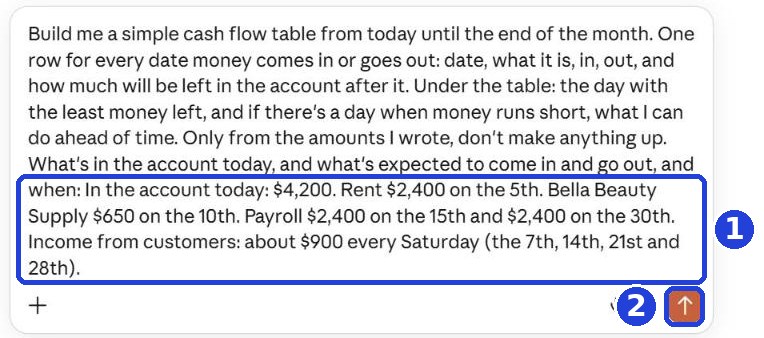
Copy the message and paste it. At the end of the message, after the colon, write how much is in the account today, and what's expected to come in and go out until the end of the month, with dates: rent, suppliers, payroll, payments from customers. Write it all in one go, with a period between items, without going down a line: on a computer, Enter sends the message before you're done.
Build me a simple cash flow table from today until the end of the month. One row for every date money comes in or goes out: date, what it is, in, out, and how much will be left in the account after it. Under the table: the day with the least money left, and if there's a day when money runs short, what I can do ahead of time. Only from the amounts I wrote, don't make anything up. What's in the account today, and what's expected to come in and go out, and when:
After you tap "Copy": click inside Claude's message box and paste. On a phone: press and hold in the box, then tap "Paste". On a computer: Ctrl+V (on a Mac: Command+V).
Click the orange arrow (mark 2 in the screenshot).
See the tight day coming
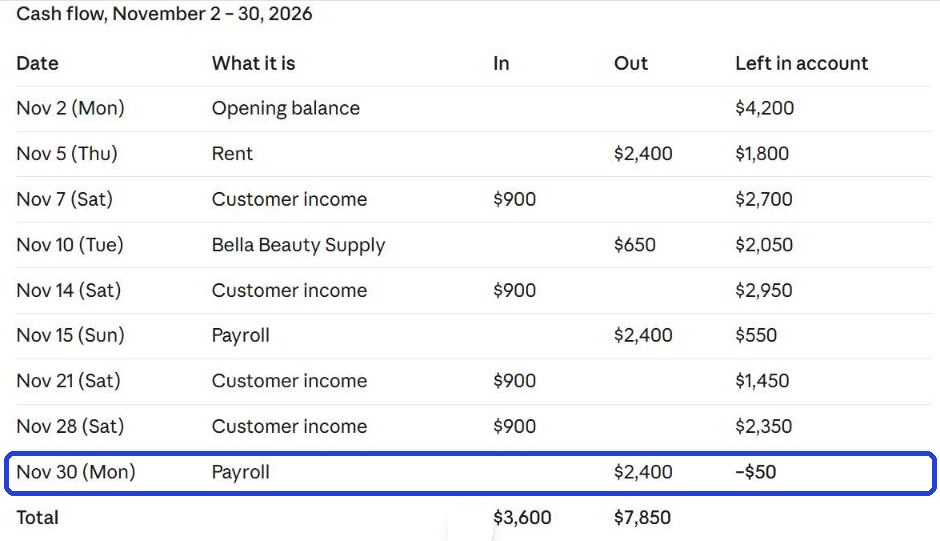
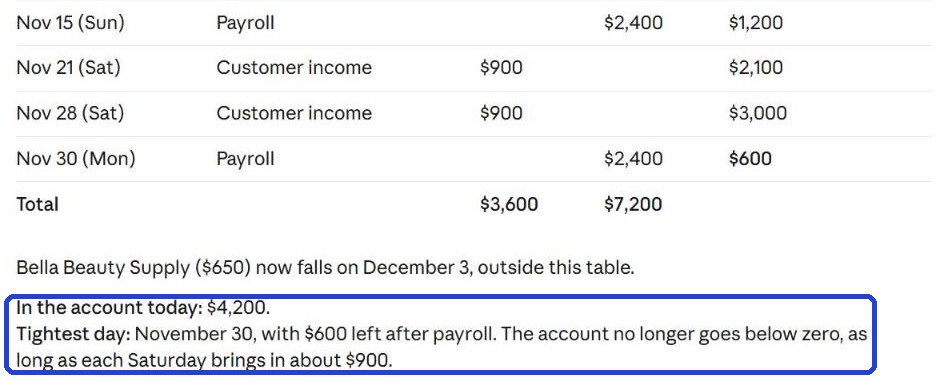
Claude builds a table: for each date, what comes in, what goes out, and how much will be left in the account.
Claude writes the answer bit by bit. Wait until it finishes, then scroll down.
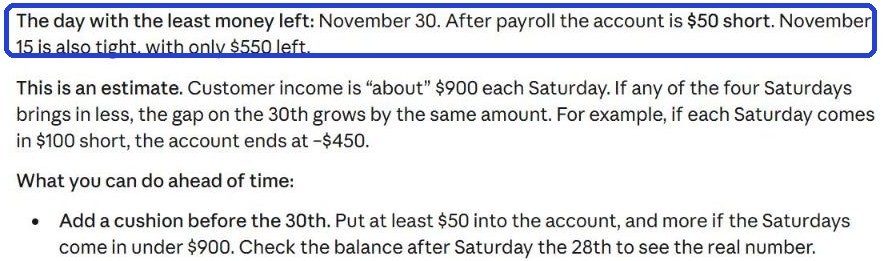
Under the table: the day with the least money (in the blue frame in the screenshot), and what you can do ahead of time.
Check: that today's amount matches what's in the bank, and that every date and amount is right. Claude can make mistakes too. Forgot something? Write to Claude underneath, like you would to a person: "I forgot insurance, $150 on the 20th", and it updates the table.
On a phone the table is wide: scroll it sideways with your finger, or write to Claude "Show this as a list, not a table".
Every morning: "Good morning, cash flow"
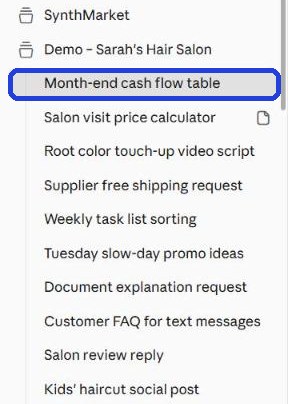
Tomorrow morning, go back to the same chat, so Claude continues from the same table. Find it by the name Claude gave it (on a computer: in the side menu; on a phone: the button with the lines at the top corner). Worked inside a project? The chat also shows up on the project page.
Copy and paste this into the box under the answer. At the end of the message, after the colon, write what changed since yesterday: what came in, what went out, and what moved. And if you can, also how much is actually in the account today (from your bank app):
Good morning, cash flow. Update the table with what changed, and tell me in two lines: how much is in the account today, and which day is the tightest until the end of the month. What changed:

Claude updates the table, and at the end writes briefly how much is there today, and which day is the tightest (in the blue frame in the screenshot).
Want this to happen on its own?
We're looking into building a cash flow agent: an automatic assistant that builds the table from a photo of your bank statement, and sends you where your money stands every morning. Getting the steps by email? Reply to this step's email with the words "CASH FLOW", and we'll keep you posted if and when it's ready. Came from the website? Sign up for the steps in the form below, and reply "CASH FLOW" to one of the emails.
Today's task
Build a table until the end of the month. Tomorrow morning, go back to the same chat and write "Good morning, cash flow" with what changed.
Don't want to wait?
All the steps, prompts and templates right now, in one place, ready to copy: $1.99.
Pay once. Yours for good, including everything we add.
Training material and tools, with no promise of income.
Secure payment through Polar. The link to the pack arrives right after payment, by email too. Full refund within 14 days.
Want a new step every morning?
One small win a day, by email.
We'll email you the daily step every morning, plus the next guides, tips and updates from Team in a Box. Unsubscribe anytime.
More from this series
Your business's first website · Your first helper · All guides