
Daily step · 17 · Claude from Zero
My voice pageTeach Claude to write like you, once
Your screen may look a little different (for example, the name under the message box). That's fine. Don't have a Claude account yet? Guide 1 covers everything. Tap any screenshot to see it bigger.
What Claude writes comes out nice, but doesn't always sound like you? Today you teach it your voice: show it 3 texts you wrote, and it writes a short "voice page". Save it in your business project, and from then on the messages Claude writes there sound much more like you.
Paste 3 texts of yours
Open your business project from guide 2 (on a computer: in the side menu; on a phone: the button with the lines at the top corner, then Projects and your project). No project? Start a new chat; it works that way too (part 3 explains).
Important: on a computer, Enter alone sends the message. To go down a line, press Shift and Enter together. On a phone, the Enter key goes down a line. Sent it by mistake before you were done? No big deal: paste the rest in the next message.
Copy 3 messages or posts you wrote yourself: from your texts, Facebook or Instagram. Each message separately (press and hold it, then "Copy"), so you don't copy the time and name too. Ideally they're different: a message to a customer, a thank-you, and a message to everyone. Paste them into the message box, one under the other. On a phone: after each paste, go back to the app, copy the next one, and come back to Claude.
Go down a line under the texts, come back to this page, copy this message and paste it:
These are 3 texts I wrote myself (above). Write me "My voice page": up to 10 short lines that describe how I write: how I address customers, how long my sentences are, words and phrases I like, what I never write, emojis, and how I sign off. At the end, one line: "When you write for me, write like this". Plain text, no asterisks and no formatting.
After you tap "Copy": click inside Claude's message box and paste. On a phone: press and hold in the box, then tap "Paste". On a computer: Ctrl+V (on a Mac: Command+V).
Click the orange arrow (mark 2 in the screenshot).
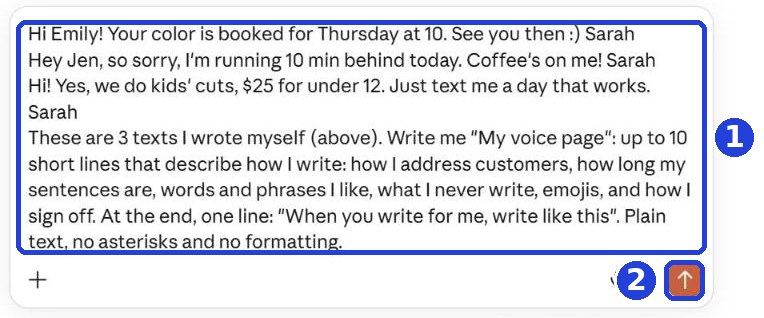
A customer's first name is fine (it shows Claude how you greet people). Delete phone numbers, last names and addresses before you send.
Read your voice page
Claude writes up to 10 lines: how you address people, how long your sentences are, which words you like, what you never write, and how you sign off.
Claude writes the answer bit by bit. Wait until it finishes, then scroll down.
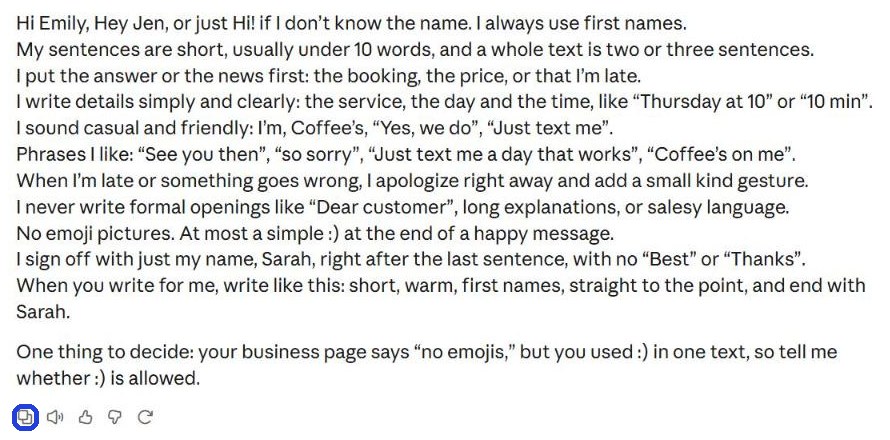
Something not quite right? Write to Claude underneath, like you would to a person: "I do use exclamation points", and it fixes it. When everything is right, click the first button on the left under the answer (an icon of two pages) (in the frame in the screenshot). That copies the whole voice page.
Save it in your project
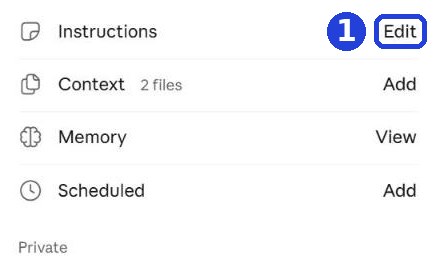
Go back to the project page (click the project name at the top). On the side, next to Instructions (the project's instructions), click Edit (mark 1).
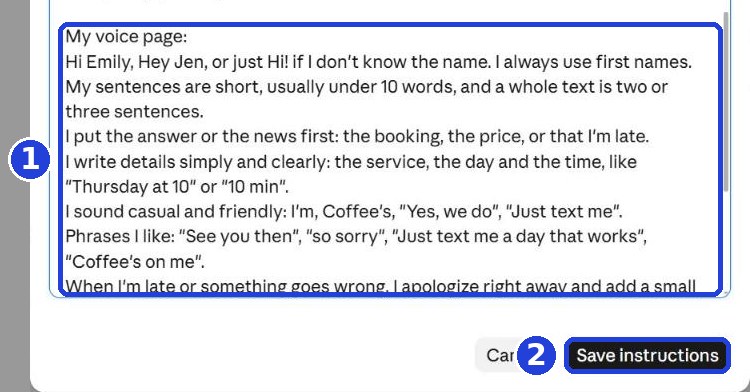
A window opens with the instructions you wrote in guide 2. Scroll to the end of the instructions and click there, go down two lines (here Enter goes down a line), type "My voice page:", and paste (mark 1). Did Claude add a note at the end (in our example: "One thing to decide: your business page says...")? Delete it in the window, or fix it according to what you decided. Then click Save instructions (mark 2). The window closes, and that's fine.
No project? Save the voice page where you keep notes: a note on your phone, or a text file or document on your computer. Save the message below in the same note too. In every new chat, before your request, copy this message, and paste the voice page from your note right after it. Then, in the same message, write your request:
From now on, when you write for me, write according to "My voice page" in this message. My voice page:
Test it
With a project: write in the message box on the project page (not with the new chat button in the menu, which starts a chat outside the project). No project: start a new chat, paste the message from the end of step 3 with your voice page after it, and then your request. Ask for a small message, for example "Write me a short text to customers: on Thanksgiving Day I'm open only until 2pm". The message should sound much more like you.
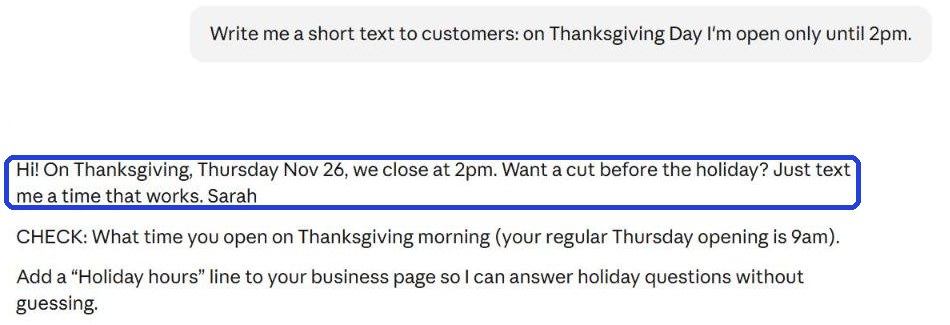
Doesn't sound like you? Fix the voice page in the instructions (Edit again) until it feels right.
Today's task
Pick 3 texts you wrote, get a voice page, save it (in your project, or in a note), and ask for one real message to customers.
Don't want to wait?
All the steps, prompts and templates right now, in one place, ready to copy: $1.99.
Pay once. Yours for good, including everything we add.
Training material and tools, with no promise of income.
Secure payment through Polar. The link to the pack arrives right after payment, by email too. Full refund within 14 days.
Want a new step every morning?
One small win a day, by email.
We'll email you the daily step every morning, plus the next guides, tips and updates from Team in a Box. Unsubscribe anytime.
More from this series
Your business's first website · Your first helper · All guides