
Daily step · 9 · Claude from Zero
This week's messFrom a messy list to clear priorities
Your screen may look a little different (for example, the name under the message box). That's fine. Don't have a Claude account yet? Guide 1 covers everything. Tap any screenshot to see it bigger.
It's all on your mind: a supplier, a bill, a customer waiting for an answer, a chair that needs fixing. Today you get it all out to Claude, in no order, and get back a neat list with a small first step for each thing.
Write it all down, in no order
Start a new chat (on a computer: the new chat button at the top of the side menu, called New chat or New; on a phone: the pencil icon at the top), or open your business project, if you have one from guide 2.
Important: on a computer, Enter alone sends the message. To go down a line, press Shift and Enter together. On a phone, the Enter key goes down a line.
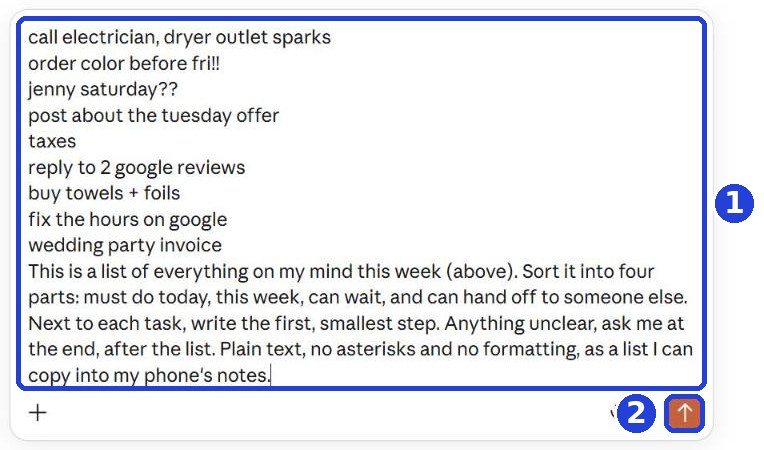
In the message box, write everything you have this week, exactly as it is in your head: no order, no punctuation, typos and all. It can all be on one line. Don't feel like typing? Tap the microphone next to the message box and talk, like in step 3 (the first time, your browser or phone asks whether to allow the microphone: allow it).
Add the request
Go down a line under the list (on a computer: Shift and Enter), copy this message and paste it:
This is a list of everything on my mind this week (above). Sort it into four parts: must do today, this week, can wait, and can hand off to someone else. Next to each task, write the first, smallest step. Anything unclear, ask me at the end, after the list. Plain text, no asterisks and no formatting, as a list I can copy into my phone's notes.
After you tap "Copy": click inside Claude's message box and paste. On a phone: press and hold in the box, then tap "Paste". On a computer: Ctrl+V (on a Mac: Command+V).
Click the orange arrow (mark 2 in the screenshot).
Get it sorted
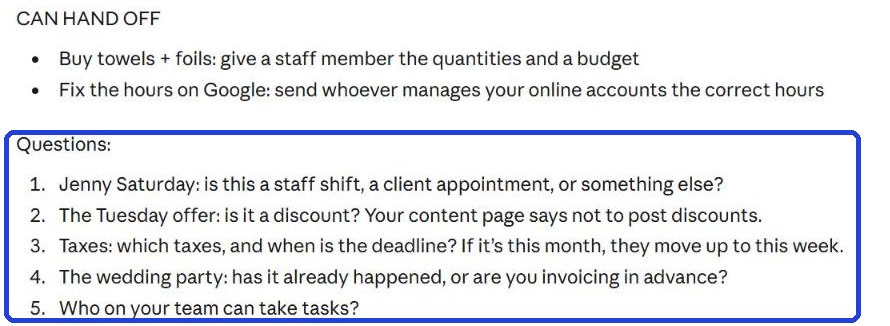
Claude splits it into four parts, and next to each task writes the smallest first step. Wait until it finishes writing, and scroll down.
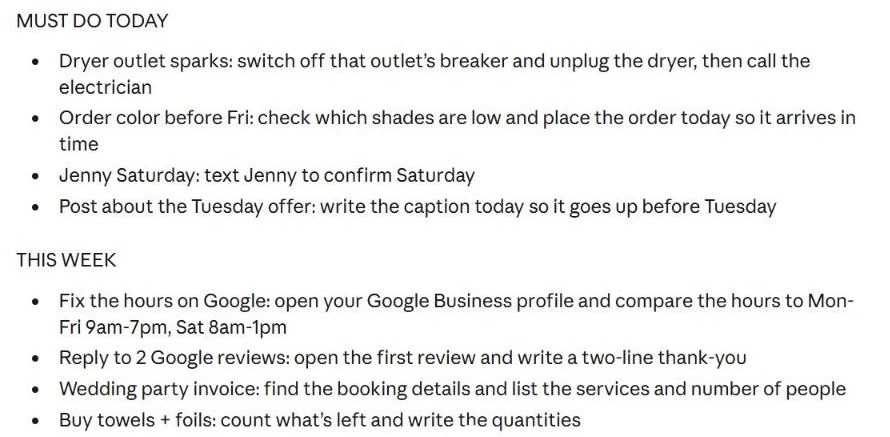
At the end, Claude asks about anything that wasn't clear (in the frame). Answer each question briefly, all in one message, for example: "Jenny works on Saturdays. The offer starts on the 3rd. My accountant handles the taxes." Claude updates the list.
Save it and update it
Under Claude's answer, the first button on the left (mark 1 in the screenshot, an icon of two pages) copies the whole answer. On a phone: open a new note in your notes app, press and hold inside it, and choose "Paste". On a computer: open a new document (for example in Word or Google Docs), and paste (Ctrl+V; on a Mac: Command+V).

At the end of the day, go back to the same chat and write what you finished, for example: "Done with the electrician and the color order, what's next?". Claude updates the list.
Today's task
Write or tell Claude everything you have this week, and get a sorted list. Today, do the smallest first step of one task from "must do today".
Don't want to wait?
All the steps, prompts and templates right now, in one place, ready to copy: $1.99.
Pay once. Yours for good, including everything we add.
Training material and tools, with no promise of income.
Secure payment through Polar. The link to the pack arrives right after payment, by email too. Full refund within 14 days.
Want a new step every morning?
One small win a day, by email.
We'll email you the daily step every morning, plus the next guides, tips and updates from Team in a Box. Unsubscribe anytime.
More from this series
Your business's first website · Your first helper · All guides