
Daily step · 18 · Claude from Zero
One helper that remembersAdd what you already made to your project, and stop starting from zero
Your screen may look a little different (for example, the name under the message box). That's fine. Don't have a Claude account yet? Guide 1 covers everything. Tap any screenshot to see it bigger.
In a regular chat, Claude doesn't know your business. In your business project, it already knows your Business page (from guide 2) and your voice page (from step 17). Today you add more things you made to the project, for example the questions that keep coming from step 6. From now on you ask in one line, and Claude already knows what you added.
No project? Guide 2 shows how to open one, on the free plan too. Then come back here.
Add a document to the project
Open your business project from guide 2 (on a computer: in the side menu; on a phone: the button with the lines at the top corner, then Projects and your project). On the side, next to Context (the project's materials), click Add (mark 1), and choose Add text content (mark 2).
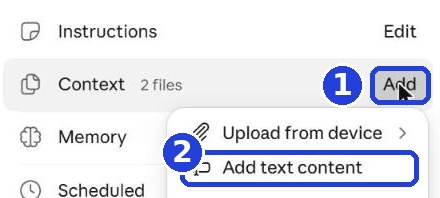
No such option on your phone? Open claude.ai in your phone's browser (Chrome on Android, Safari on iPhone), open the project, and it's there. Or, without a project: paste the questions and answers at the start of the chat, after the words "Here's information about my business:".
Give it a name and paste
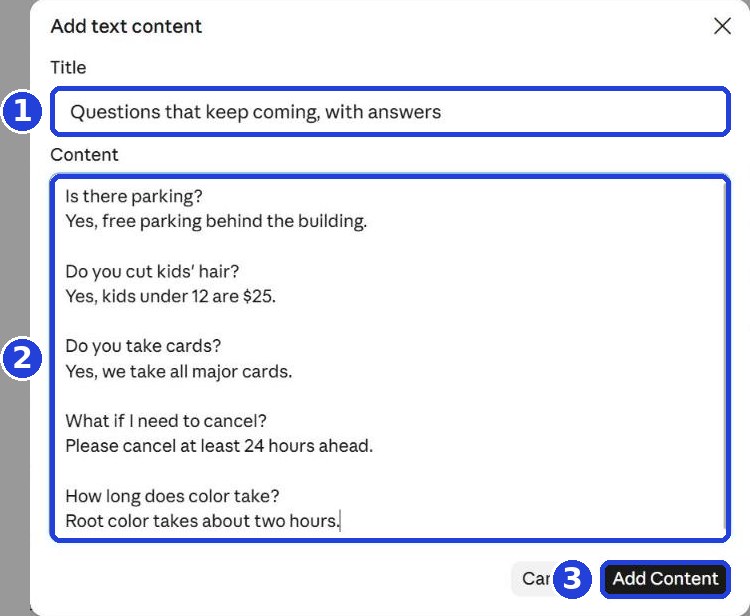
In the top line, Title (mark 1), type a name, for example "Questions that keep coming, with answers". In the big box, Content (mark 2), paste the content: the questions and answers from step 6, or anything you want Claude to remember (cancellation policy, holiday hours, directions). Click Add Content (mark 3).
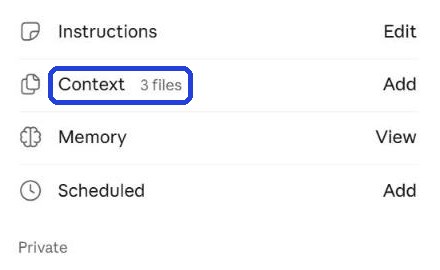
Next to Context, the number goes up by 1 (in this example from 2 files to 3 files). That means the document is in.
Don't put customers' details, passwords or account numbers in the project. Only information about the business.
Test it in one line
Write in the message box on the project page. Copy the message and paste it. At the end of the message, after the colon, paste a real customer question:
Write me a short reply to a customer, based on what's in the project and in my voice. Anything that isn't in the project, write separately at the end, after "CHECK:". This is the customer's question:
After you tap "Copy": click inside Claude's message box and paste. On a phone: press and hold in the box, then tap "Paste". On a computer: Ctrl+V (on a Mac: Command+V).
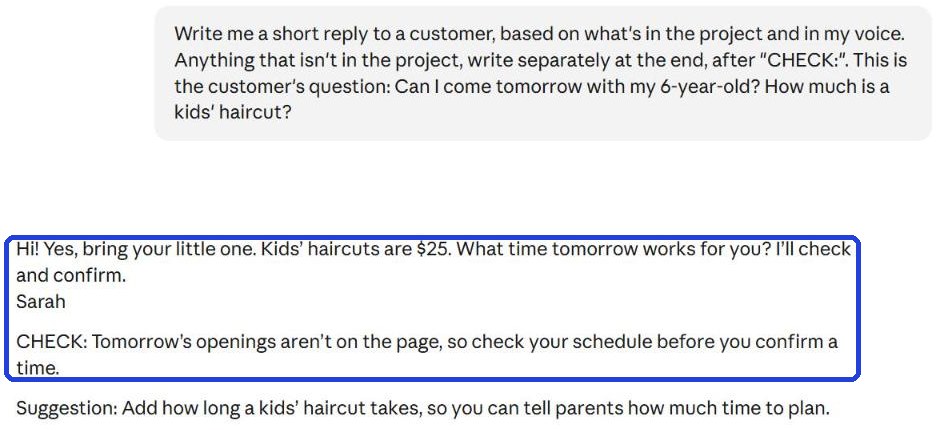
Copy only the reply to the customer (what's in the frame in the screenshot). Way 1: select it and copy it (on a phone: press and hold, then "Copy". On a computer: Ctrl+C, on a Mac: Command+C). Way 2: write to Claude "Just the reply to the customer, with nothing before or after it", and then the first button on the left under the answer (an icon of two pages), under the new answer, copies it. Note: the button copies the whole answer, not just what you selected. Don't send the "CHECK:" lines to the customer: check them yourself. And before you send, check every price and time.
Tip: dates
Claude sometimes gets the day of the week of a date wrong. You can add this line to the project instructions: on the project page, click Edit next to Instructions, scroll to the end, go down a line, paste, and click Save instructions (shown in the screenshots of step 17).
For questions about dates, days and times, first check today's date, and write the day of the week next to every date.
Today's task
Add one document to your project (the questions that keep coming, or a cancellation policy), and test it with a real customer question.
Don't want to wait?
All the steps, prompts and templates right now, in one place, ready to copy: $1.99.
Pay once. Yours for good, including everything we add.
Training material and tools, with no promise of income.
Secure payment through Polar. The link to the pack arrives right after payment, by email too. Full refund within 14 days.
Want a new step every morning?
One small win a day, by email.
We'll email you the daily step every morning, plus the next guides, tips and updates from Team in a Box. Unsubscribe anytime.
More from this series
Your business's first website · Your first helper · All guides